Tis the season to be jolly, readers! In the spirit of learning, we'll be exploring a bit of NodeJS today. I'm a bit of a beginner here myself, so bear with me!
What we'll do here, is create a web form that will send a HTML email. Sounds simple, and it is! However, that comes with a few considerations. So buckle up; this sleigh is going on a ride.
You should already have a Node environment, and set up the folder in which you'll be working. To begin, we install
Express because it will take care of the tedious and repetitive scaffolding.
install --save express
Now create this file. This will be the file which we run whenever we need to restart the script. We need to run the
require() function with "express" as an argument, then assign the returned value (which is another function) to the variable
express.
app.jsvar express = require("express");
Then we run the newly-created function
express() and assign the value to
app.
app.jsvar express = require("express");
var app = express();
Next, we'll install
Handlebars as a templating engine. It's not
absolutely necessary, of course, but knowing how to use a templating engine is a good basic skill. Run this in the command line.
install --save express-handlebars
Again, we need to
require() handlebars. Assign the
returned value to the variable
handlebars.
app.jsvar express = require("express");
var app = express();
var handlebars = require("express-handlebars");
Then chain this to use the method
create(). In it, we pass an object with one single property -
defaultLayout with a value of "main".
app.jsvar express = require("express");
var app = express();
var handlebars = require("express-handlebars").create({defaultLayout:"main"});
Then, by using app's
engine() method, we set the app to use the
Handlebars engine (represented by the
engine property of the
handlebars object) and map the ".handlebars" extension to that engine.
app.jsvar express = require("express");
var app = express();
var handlebars = require("express-handlebars").create({defaultLayout:"main"});
app.engine("handlebars", handlebars.engine);
Now let's set some stuff. Use the
set() method of the
app object, to set the view engine to
handlebars.
app.jsvar express = require("express");
var app = express();
var handlebars = require("express-handlebars").create({defaultLayout:"main"});
app.engine("handlebars", handlebars.engine);
app.set("view engine", "handlebars");
We also want to set the port. In this case, we use the core
process object's
PORT property (within the sub-object
env) or 3000 if it doesn't exist (as can be the case in a different environment).
app.jsvar express = require("express");
var app = express();
var handlebars = require("express-handlebars").create({defaultLayout:"main"});
app.engine("handlebars", handlebars.engine);
app.set("view engine", "handlebars");
app.set("port", process.env.PORT || 3000);
After that, we'll want to do routes. Here's our first route, and it's the most basic one. It's a
GET request and it's the home address. Just a slash, with nothing after it. The second argument in the
get() method is a callback. The callback uses the parameters
req and
res to represent the request and response.
app.jsapp.set("view engine", "handlebars");
app.set("port", process.env.PORT || 3000);
app.get("/", (req, res)=> {
});
In the callback, we use the response's
render() method, and pass in "form" as the argument. This means that for the home page, we want to render the form page.
app.jsapp.get("/", (req, res)=> {
res.render("form");
});
Finally, we set the app to listen at the port we set earlier. We don't have to add any more statements to the callback, but it's useful for if we need to do any troubleshooting.
app.jsapp.get("/", (req, res)=> {
res.render("form");
});
app.listen(app.get("port"), ()=> {
});
Remember that the default layout is
main and the home page is
form? Our next steps will bear this in mind. In
Handlebars, these files are in the
views directory by default. And layouts are stored in the
layouts directory of the
views directory. Let's just start with
form. Create
form.handlebars in
views. We'll start simple, with a
h1 tag and a paragraph.
views/form.handlebars<h1>Welcome to Teochew Thunder's Xmas Mailer.</h1>
<p>Email a friend!</p>
Now let's do the layout. Create the
layouts directory within
views, and then create
main.handlebars in that sub-directory. It's a bare-bones HTML boilerplate.
views/layouts/main.handlebars<!DOCTYPE html>
<html>
<head>
<meta charset="utf-8">
<meta name="viewport" content="width=device-width, initial-scale=1">
<title>Xmas Mailer</title>
</head>
<body>
</body>
</html>
We will add the template string that brings
body into the
body tag.
body is a keyword in the templating engine that represents the HTML content. And in this case, the HTML content will be inside
main.handlebars.
views/layouts/main.handlebars
<!DOCTYPE html>
<html>
<head>
<meta charset="utf-8">
<meta name="viewport" content="width=device-width, initial-scale=1">
<title>Xmas Mailer</title>
</head>
<body>
{{{ body }}}
</body>
</html>
You'll see this in your browser at port 3000!
Time to add some styling. Generally there's a better way to do this, but I'm just going to put all the styling in the
main layout.
views/layouts/main.handlebars
<!DOCTYPE html>
<html>
<head>
<meta charset="utf-8">
<meta name="viewport" content="width=device-width, initial-scale=1">
<title>Xmas Mailer</title>
<style>
body {
font-family: verdana, sans-serif;
font-size: 14px;
background-color: rgba(255, 200, 0, 0.5);
color: rgba(255, 100, 0, 0.8);
}
h1, p {
text-align: center;
}
</style>
</head>
<body>
{{{ body }}}
</body>
</html>
Here we are, styling applied.
We'll need a few more! Add the "thank you" route. It's a
GET, and renders the
thankyou page.
app.jsapp.get("/", (req, res)=> {
res.render("form");
});
app.get("/thankyou", (req, res)=> {
res.render("thankyou");
});
app.listen(app.get("port"), ()=> {
});
Create this file in the
views directory. It has a
h1 tag, two paragraphs and a link.
views/thankyou.handlebars
<h1>Thank you!</h1>
<p>Your mail has been sent.</p>
<p><a href="./">Send another.</a></p>
Now try this URL! If you click on the link, you should go back to the main page.
We'll create routes to handle errors as well. After the two routes we've defined so far, add a middleware function. It's the
use() method of the
app object. Again, it has
req and
res, and also
next. But we'll only need
res.
app.jsapp.get("/thankyou", (req, res)=> {
res.render("thankyou");
});
app.use((req, res, next)=> {
});
app.listen(app.get("port"), ()=> {
});
We set the status to 404 here. Bear in mind that this code only executes if none of the other routes are triggered.
app.jsapp.get("/thankyou", (req, res)=> {
res.render("thankyou");
});
app.use((req, res, next)=> {
res.status(404);
});
app.listen(app.get("port"), ()=> {
});
Then after that, we use the
render() method to display the
404 page.
app.jsapp.get("/thankyou", (req, res)=> {
res.render("thankyou");
});
app.use((req, res, next)=> {
res.status(404);
res.render("404");
});
app.listen(app.get("port"), ()=> {
});
We will, of course, want to create that page under the
views directory.
view/404.handlebars
<h1>404</h1>
<p>Not found!</p>
Now try this. Enter any string after the base URL, other than "thankyou". You should get this.
Now for the rest of the form!
We've learned quite a few concepts. But it's time to create the form so that we can use it in the next part of this tutorial. In this file, add the HTML form. It will submit to the
process route (which we'll create in the next part of this web tutorial) and the method will be
POST.
views/form.handlebars
<h1>Welcome to Teochew Thunder's Xmas Mailer.</h1>
<p>Email a friend!</p>
<form action="/process" method="POST">
</form>
We have here a
label tag. Within it is a
span tag styled using the CSS class
labelText. The label text is "LAYOUT".
views/form.handlebars
<form action="/process" method="POST">
<label>
<span class="labelText">LAYOUT</span>
</label>
</form>
We've got a few more labels. There are
br tags in between.
views/form.handlebars
<form action="/process" method="POST">
<label>
<span class="labelText">LAYOUT</span>
</label>
<br />
<label>
<span class="labelText">EMAIL</span>
</label>
<br />
<label>
<span class="labelText">MESSAGE</span>
</label>
</form>
In here, we allow the user to select between a
red,
green or
blue layout by means of a drop-down list, id and name
ddlLayout. We'll want to set the
for attribute in the label for this, too.
views/form.handlebars
<label for="ddlLayout">
<span class="labelText">LAYOUT</span>
<select id="ddlLayout" name="ddlLayout">
<option value="red">RED</option>
<option value="green">GREEN</option>
<option value="blue">BLUE</option>
</select>
</label>
For email, I'm going to use a text input with
type attribute set to "email". This will be a required field. The drop-down list we made earlier is also mandatory, but there's a default value in it, so no need to do anything more.
views/form.handlebars
<label for="txtEmail">
<span class="labelText">EMAIL</span>
<input id="txtEmail" name="txtEmail" type="email" placeholder="john12345@gmail.com" required />
</label>
For the message, I use a
textarea tag. It is also mandatory.
views/form.handlebars
<label for="txtMessage">
<span class="labelText">MESSAGE</span>
<textarea id="txtMessage" name="txtMessage" required></textarea>
</label>
Let's go ahead and add a Submit button.
views/form.handlebars
<form action="/process" method="POST">
<label for="ddlLayout">
<span class="labelText">LAYOUT</span>
<select id="ddlLayout" name="ddlLayout">
<option value="red">RED</option>
<option value="green">GREEN</option>
<option value="blue">BLUE</option>
</select>
</label>
<br />
<label for="txtEmail">
<span class="labelText">EMAIL</span>
<input id="txtEmail" name="txtEmail" type="email" placeholder="john12345@gmail.com" required />
</label>
<br />
<label for="txtMessage">
<span class="labelText">MESSAGE</span>
<textarea id="txtMessage" name="txtMessage" required></textarea>
</label>
<br />
<button>Go</button>
</form>
Looks... meh. This is going to need more styling.
In this file, add the styling in the
style tag. We want all forms (or actually, the one and only form) to have a height, width, and be in the middle of the page, and have a background color.
views/layouts/main.handlebars
<style>
body {
font-family: verdana, sans-serif;
font-size: 14px;
background-color: rgba(255, 200, 0, 0.5);
color: rgba(255, 100, 0, 0.8);
}
h1, p {
text-align: center;
}
form {
width: 22em;
height: 12em;
padding: 1em;
display: block;
margin: 0 auto 0 auto;
background-color: rgba(255, 200, 0, 0.5);
}
</style>
The
label tags are set to display as block-level elements, with a bit of a margin at the top, and font is boldened. The
span tags that are styled using
labelText. They're also rendered as block-level elements so that we can float them left, give them a margin to the right, and a width.
views/layouts/main.handlebars
<style>
body {
font-family: verdana, sans-serif;
font-size: 14px;
background-color: rgba(255, 200, 0, 0.5);
color: rgba(255, 100, 0, 0.8);
}
h1, p {
text-align: center;
}
form {
width: 22em;
height: 12em;
padding: 1em;
display: block;
margin: 0 auto 0 auto;
background-color: rgba(255, 200, 0, 0.5);
}
label {
display: inline-block;
margin-top: 0.5em;
font-weight: bold;
}
.labelText {
display: inline-block;
width: 5em;
margin-right: 1em;
float: left;
}
</style>
Now, we'll make sure all the textboxes and drop-down lists have fixed widths and heights, round corners and a border.
views/layouts/main.handlebars
<style>
body {
font-family: verdana, sans-serif;
font-size: 14px;
background-color: rgba(255, 200, 0, 0.5);
color: rgba(255, 100, 0, 0.8);
}
h1, p {
text-align: center;
}
form {
width: 22em;
height: 12em;
padding: 1em;
display: block;
margin: 0 auto 0 auto;
background-color: rgba(255, 200, 0, 0.5);
}
label {
display: inline-block;
margin-top: 0.5em;
font-weight: bold;
}
.labelText {
display: inline-block;
width: 5em;
margin-right: 1em;
float: left;
}
input, select, textarea {
border-radius: 5px;
width: 15em;
height: 1.5em;
border: 2px solid rgb(100, 100, 100);
}
</style>
But
textarea tags will have a bigger height.
views/layouts/main.handlebars
<style>
body {
font-family: verdana, sans-serif;
font-size: 14px;
background-color: rgba(255, 200, 0, 0.5);
color: rgba(255, 100, 0, 0.8);
}
h1, p {
text-align: center;
}
form {
width: 22em;
height: 12em;
padding: 1em;
display: block;
margin: 0 auto 0 auto;
background-color: rgba(255, 200, 0, 0.5);
}
label {
display: inline-block;
margin-top: 0.5em;
font-weight: bold;
}
.labelText {
display: inline-block;
width: 5em;
margin-right: 1em;
float: left;
}
input, select, textarea {
border-radius: 5px;
width: 15em;
height: 1.5em;
border: 2px solid rgb(100, 100, 100);
}
textarea {
height: 5em;
}
</style>
And lastly, we style the button.
views/layouts/main.handlebars
<style>
body {
font-family: verdana, sans-serif;
font-size: 14px;
background-color: rgba(255, 200, 0, 0.5);
color: rgba(255, 100, 0, 0.8);
}
h1, p {
text-align: center;
}
form {
width: 22em;
height: 12em;
padding: 1em;
display: block;
margin: 0 auto 0 auto;
background-color: rgba(255, 200, 0, 0.5);
}
label {
display: inline-block;
margin-top: 0.5em;
font-weight: bold;
}
.labelText {
display: inline-block;
width: 5em;
margin-right: 1em;
float: left;
}
input, select, textarea {
border-radius: 5px;
width: 15em;
height: 1.5em;
border: 2px solid rgb(100, 100, 100);
}
textarea {
height: 5em;
}
button {
display: inline-block;
width: 3em;
float: right;
}
</style>
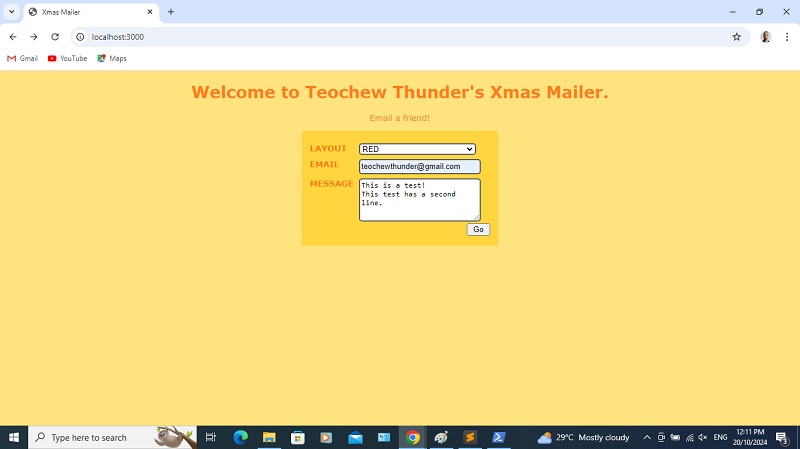
And now it looks acceptable.
Next
Form handling and security