Showing posts with label Christmas. Show all posts

Friday, 19 December 2025

Web Tutorial: Ruby On Rails Xmas Poll (Part 2/4)

For this part of the web tutorial, you'll need to have Rails installed. Here, you'll start a new project in the CLI using the rails new command followed by the name of your project. We'll add "--skip-active-record" because we won't be using the built-in database functionnality.
rails new xmas-poll-2025 --skip-active-record


Go to the file named gemfile and add these two lines. We are going to install httparty and dotenv-rails. httparty allows us to call endpoints, which is going to be absolutely necessary. dotenv-rails helps us get variables from the .env file. This is not so necessary, but it's a good practice and we're gonna do it.

Gemfile
gem "httparty"
gem "dotenv-rails", groups: [:development, :test]


Then navigate to the xmas-poll-2025 directory and run this command in the CLI.
bundle install


Still in the CLI, run this command to create the controller poll.
rails generate controller poll


This will create the file, poll_controller.rb, in the controllers directory of the app directory. Some other files will be created, but we can examine them later. Let's first make sure that we have an index action defined, and a submit action.

app/controllers/poll_controller.rb
class PollController < ApplicationController
    def index

    end

    def submit

    end
end


Go to routes.rb in the config directory. Make sure your main route is defined. Add a submit route for the form we're about to create. Note that we have the alias "poll_page" for the main route, and the alias "submit_poll_form" for the form submission route. These will be useful as references. We'll also define the index action of the poll controller as the root.

config/routes.rb
Rails.application.routes.draw do
    get "poll/", to: "poll#index", as: "poll_page"

    root "poll#index"
    post "poll/submit", to: "poll#submit", as: "submit_poll_form"
end


In the views directory, navigate to layouts. You should see application.html.erb. Change the title and add placeholders for alerts and notices.

app/views/layouts/application.html.erb
<!DOCTYPE html>
<html>
    <head>
        <title><%= content_for(:title) || "Xmas Poll 2025" %></title>
        <meta name="viewport" content="width=device-width,initial-scale=1">
        <meta name="apple-mobile-web-app-capable" content="yes">
        <meta name="mobile-web-app-capable" content="yes">
        <%= csrf_meta_tags %>
        <%= csp_meta_tag %>

        <%= yield :head %>

        <%# Enable PWA manifest for installable apps (make sure to enable in config/routes.rb too!) %>
        <%#= tag.link rel: "manifest", href: pwa_manifest_path(format: :json) %>

        <link rel="icon" href="/icon.png" type="image/png">
        <link rel="icon" href="/icon.svg" type="image/svg+xml">
        <link rel="apple-touch-icon" href="/icon.png">

        <%# Includes all stylesheet files in app/assets/stylesheets %>
        <%= stylesheet_link_tag :app, "data-turbo-track": "reload" %>
        <%= javascript_importmap_tags %>
    </head>

    <body>
        <% if flash[:notice] %>
            <div class="notice"><%= flash[:notice] %></div>
        <% end %>
        <% if flash[:alert] %>
            <div class="alert"><%= flash[:alert] %></div>
        <% end %>
        <br />
        <%= yield %>
    </body>
</html>


We'll create a view for poll. In the views directory, create the poll directory and in it, create index.html.erb.

In here, we'll want to use the form helper. We can manually write the HTML form, but this really just defeats the purpose of using Ruby On Rails. The form will use the route submit_poll_form, which we defined earlier. Add a button too.

app/views/poll/index.html.erb
<div>
  <%= form_with url: submit_poll_form_path, local: true do |form| %>
    <button>Send</button>
  <% end %>
</div>


Run this command in the CLI.
rails server


When you go to http://localhost:3000, you should see this!


Let's just spruce this up a bit. Go to this CSS file. Here, set the font. Background color we'll keep to a Christmassy deep red. Create pollform. I want to give it a nice cheerful bright green background, with round corners. The button will be a big red one. Obviously, all this is just visual and makes no difference to functionality.

app/assets/stylesheets/application.css
body
{
  font-family: Verdana;
  font-size: 14px;
  background-color: rgb(100, 0, 0);
}

.pollform
{
  width: 600px;
  padding: 10px;
  border-radius: 10px;
  border: 3px solid rgb(200, 0, 0);
  background-color: rgb(0, 200, 0);
  margin: 5% auto 0 auto;
}

button
{
  width: 10em;
  height: 2em;
  margin-top: 10%;
  float: right;
  font-size: 1.5em;
  border-radius: 20px;
  border: 3px solid rgb(255, 2525, 255);
  background-color: rgb(255, 0, 0);
  color: rgb(255, 255, 255);
}

button:hover
{
  background-color: rgb(155, 0, 0);
}


In here, set the div class to pollform.

app/views/poll/index.html.erb
<div class="pollform">
  <%= form_with url: submit_poll_form_path, local: true do |form| %>
    <button>Send</button>
  <% end %>
</div>


There you go. Nothing in the form yet, but you can see that the form details will appear in the bright green area.


Time to work on the controller. Remember installing httparty? We'll use it here with an import.

app/controllers/poll_controller.rb
require "httparty"

class PollController < ApplicationController
    def index

    end

    def submit

    end
end


Before we continue, we need to add this line to the .env file. This is the URL of the API endpoint we defined in the previous part of the web tutorial.

.env
ORDS_API_URL=https://oracleapex.com/ords/teochewthunder/polls/poll/1


Then use the variable ORDS_API_URL from .env, in this way.

app/controllers/poll_controller.rb
require "httparty"

class PollController < ApplicationController
    ORDS_API_URL = ENV["ORDS_API_URL"]

    def index

    end

    def submit

    end
end


For index, we want to fetch the questions. Use the get() method of HTTParty, passing in ORDS_API_URL as an argument. This makes a call to that specific URL using a GET request. The result should be assigned to the variable response.

app/controllers/poll_controller.rb
class PollController < ApplicationController
    ORDS_API_URL = ENV["ORDS_API_URL"]

    def index
        response = HTTParty.get(
            ORDS_API_URL
        )
    end

    def submit

    end
end


The fetched results should look like this.
{
  "items": [
    {
      "name": "Xmas Poll 2025",
      "serial_no": 1,
      "title": "JOY TO THE WORLD"
    },
    {
      "name": "Xmas Poll 2025",
      "serial_no": 2,
      "title": "IT CAME UPON THE MIDNIGHT CLEAR"
    },
    {
      "name": "Xmas Poll 2025",
      "serial_no": 3,
      "title": "I SAW MOMMY KISSING SANTA CLAUS"
    },
    {
      "name": "Xmas Poll 2025",
      "serial_no": 4,
      "title": "HARK THE HERALD ANGELS SING"
    },
    {
      "name": "Xmas Poll 2025",
      "serial_no": 5,
      "title": "DECK THE HALLS"
    },
    {
      "name": "Xmas Poll 2025",
      "serial_no": 6,
      "title": "THE FIRST NOEL"
    },
    {
      "name": "Xmas Poll 2025",
      "serial_no": 7,
      "title": "RUDOLPH THE RED-NOSED REINDEER"
    },
    {
      "name": "Xmas Poll 2025",
      "serial_no": 8,
      "title": "SILENT NIGHT"
    },
    {
      "name": "Xmas Poll 2025",
      "serial_no": 9,
      "title": "JINGLE BELLS"
    },
    {
      "name": "Xmas Poll 2025",
      "serial_no": 10,
      "title": "JINGLE BELL ROCK"
    }
  ],
  "hasMore": false,
  "limit": 25,
  "offset": 0,
  "count": 10,
  "links": [
    {
      "rel": "self",
      "href": "https://oracleapex.com/ords/teochewthunder/polls/poll/1"
    },
    {
      "rel": "edit",
      "href": "https://oracleapex.com/ords/teochewthunder/polls/poll/1"
    },
    {
      "rel": "describedby",
      "href": "https://oracleapex.com/ords/teochewthunder/metadata-catalog/polls/poll/item"
    },
    {
      "rel": "first",
      "href": "https://oracleapex.com/ords/teochewthunder/polls/poll/1"
    }
  ]
}


With that in mind, we'll want to send that data to the view if called successfully. If unsuccessful, we'll want to flash a notice.

app/controllers/poll_controller.rb
def index
      response = HTTParty.get(
          ORDS_API_URL
      )

    if response.code == 200

    else
        flash.now[:alert] = "Error fetching data:"

        @api_data = {}
    end
end


We can actually test this. Deliberately sabotage the endpoint like this.

app/controllers/poll_controller.rb
response = HTTParty.get(
    ORDS_API_URL + "/test"
)


Here you go, a negative result!


Let's just style the notices. We want them to be a slim bar at the top, thus we set the position property to absolute. Let's have a nice green color scheme for a general success message and a red color scheme for errors.

app/assets/stylesheets/application.css
button:hover
{
  background-color: rgb(155, 0, 0);
}

.notice, .alert
{
  width: 100%;
  position: absolute;
  font-size: 0.85em;
  font-weight: bold;
  padding: 0.5em;
  text-align: center;
  left: 0;
  top: 0;
}

.notice
{
  background-color: rgba(100, 255, 100, 0.2);
  color: rgb(0, 255, 0);
}

.alert
{
  background-color: rgba(255, 100, 100, 0.2);
  color: rgb(255, 0, 0);
}


There it is!


Now un-sabotage the API endpoint. We want it to be correct. Make sure that the parsed_response property of response is assigned to api_data. Note that the "@" denotes api_data as an instance variable that can be used in the corresponding view.

app/controllers/poll_controller.rb
def index
    response = HTTParty.get(
        ORDS_API_URL
    )

    if response.code == 200
        @api_data = response.parsed_response
    else
        flash.now[:alert] = "Error fetching data: #{response.body}"
        @api_data = {}
    end
end


Then we'll work on the view. Remember api_data and what the returned JSON looked like? Well, if we want the Poll Title, we just need to use the first element of items, and get the name property.

app/views/poll/index.html.erb
<h1><%= @api_data["items"][0]["name"] %></h1>
<div class="pollform">
  <%= form_with url: submit_poll_form_path, local: true do |form| %>

  <% end %>
</div>


In the CSS, add a styling for h1 tags.

app/assets/stylesheets/application.css
body
{
  font-family: Verdana;
  font-size: 14px;
  background-color: rgb(100, 0, 0);
}

h1
{
  text-align: center;
  color: rgba(255, 255, 255, 0.5);
}


.pollform
{
  width: 600px;
  padding: 10px;
  border-radius: 10px;
  border: 3px solid rgb(200, 0, 0);
  background-color: rgb(0, 200, 0);
  margin: 5% auto 0 auto;
}


And here is the header!


Now we'll want to display the rest of api_data. Let's have a table in there, with these headers.

app/views/poll/index.html.erb
<h1><%= @api_data["items"][0]["name"] %></h1>
<div class="pollform">
  <%= form_with url: submit_poll_form_path, local: true do |form| %>
    <table>
      <tr>
        <td width="300px"><b>Carol</b></td>
        <td width="600px"><b>Rating (1 = lowest, 5 = highest)</b></td>
      </tr>
    </table>

    <button>Send</button>
  <% end %>
</div>


So far so good...


Then we use the each keyword on items, to iterate through it. Each instance of items will be known as question within this loop. And for each instance, we will have a HTML table row and two columns.

app/views/poll/index.html.erb
<h1><%= @api_data["items"][0]["name"] %></h1>
<div class="pollform">
  <%= form_with url: submit_poll_form_path, local: true do |form| %>
    <table>
      <tr>
        <td width="300px"><b>Carol</b></td>
        <td width="600px"><b>Rating (1 = lowest, 5 = highest)</b></td>
      </tr>
      <% @api_data["items"].each do |question| %>
        <tr>
          <td></td>
          <td></td>
        </tr>
      <% end %>

    </table>
    <button>Send</button>
  <% end %>
</div>


Here, we'll reflect the question property value for title.

app/views/poll/index.html.erb
<h1><%= @api_data["items"][0]["name"] %></h1>
<div class="pollform">
  <%= form_with url: submit_poll_form_path, local: true do |form| %>
    <table>
      <tr>
        <td width="300px"><b>Carol</b></td>
        <td width="600px"><b>Rating (1 = lowest, 5 = highest)</b></td>
      </tr>
      <% @api_data["items"].each do |question| %>
        <tr>
          <td><%= form.label nil, "#{question['title']}" %></td>
          <td></td>
        </tr>
      <% end %>
    </table>
    <button>Send</button>
  <% end %>
</div>


And here all the questions from the poll, the names of the carols, are displayed!


Next we want to display a series of radio buttons. The values will be from 1 to 5. To that end, we should define rating_options as a collection containing values 1, 2, 3 4 and 5. Then we use the to_a() method to convert it to an array.

app/views/poll/index.html.erb
<h1><%= @api_data["items"][0]["name"] %></h1>
<div class="pollform">
  <%= form_with url: submit_poll_form_path, local: true do |form| %>
    <% rating_options = (1..5).to_a %>
    <table>
      <tr>
        <td width="300px"><b>Carol</b></td>
        <td width="600px"><b>Rating (1 = lowest, 5 = highest)</b></td>
      </tr>
      
      <% @api_data["items"].each do |question| %>
        <tr>
          <td><%= form.label nil, "#{question['title']}" %></td>
          <td></td>
        </tr>
      <% end %>
    </table>
    <button>Send</button>
  <% end %>
</div>


In here, we want to iterate through rating_options using each. Each element will be referred to as option.
app/views/poll/index.html.erb
<tr>
  <td><%= form.label nil, "#{question['title']}" %></td>
  <td>
    <% rating_options.each do |option| %>

    <% end %>

  </td>
</tr>


In here, we use the form helper object radio_button. We pass in option as its value. Since it's a form element, it would be proper to give it name and id properties as well, which we will base on the value of the property serial_no, which is unique in each poll. The default value checked is always 3. You may notice ":none", passed in as the first argument. You can't omit this; I've tried and the server complains. This is actually meant to be the name of the argument, but I've overwritten it later as you can see, and now ":none" is just a placeholder value.

app/views/poll/index.html.erb
<tr>
  <td><%= form.label nil, "#{question['title']}" %></td>
  <td>
    <% rating_options.each do |option| %>
      <%= form.radio_button :none,
        option,
        name: "answers[#{question['serial_no']}]",
        id: "answer_#{question['serial_no']}_#{option}",
        checked: option == 3
      %>

    <% end %>
  </td>
</tr>


And now we have a label which displays option as the text, and preferences the element with the id specified, e.g, answer_2_1.

app/views/poll/index.html.erb
<tr>
  <td><%= form.label nil, "#{question['title']}" %></td>
  <td>
    <% rating_options.each do |option| %>
      <%= form.radio_button :none,
        option,
        name: "answers[#{question['serial_no']}]",
        id: "answer_#{question['serial_no']}_#{option}",
        checked: option == 3
      %>
      <%= form.label "answer_#{question['serial_no']}_#{option}", option %>
         
    <% end %>
  </td>
</tr>


So there, you see we have a bunch of radio buttons and labels!

Believe it or not, this is actually the easy part. Brace yourselves!

Next

Handling form submission.

Wednesday, 17 December 2025

Web Tutorial: Ruby On Rails Xmas Poll (Part 1/4)

Merry Christmas season to all!

It's been years since I got my hands dirty with Ruby On Rails, and seeing as I got time, why not now? Ruby, despite me never having had an opportunity to use it professionally, is probably one of my favorite programming languages that I ever picked up for no goddamn practical reason. And, well, this Christmas season, I wanna go back to my guilty pleasure.

Today, we will be creating a form in Ruby On Rails, to submit answers to a poll. This will be a simple Christmas Carol Poll, where the user rates all presented Chsristmas Carols on a scale of 1 to 5.

Normally, a Ruby On Rails project would have its own built-in server capabilities, but I wanted to see how Oracle APEX worked with Rails. Pretty darn well, actually. Thus, what I did was first log onto my Oracle APEX workspace and create some new tables.

The first, obviously, would be a POLLS table. This is the PL/SQL statement for the table, though you can use the UI to create it. It basically is just an auto-increment integer column, ID, and a string, NAME.
CREATE TABLE "POLLS" (
    "ID" NUMBER GENERATED BY DEFAULT ON NULL AS IDENTITY MINVALUE 1 MAXVALUE 9999999999999999999999999999 INCREMENT BY 1 START WITH 1 CACHE 20 NOORDER NOCYCLE NOKEEP NOSCALE NOT NULL ENABLE,
    "NAME" VARCHAR2(100 CHAR) NOT NULL ENABLE,
    CONSTRAINT "POLLS_PK" PRIMARY KEY ("ID") USING INDEX ENABLE
);


Far easier to just copy this to clipboard, go to SQL > SQL Command and paste into the box, then run it.


There, you have the POLLS table. Ignore the other tables; they're remnants of my last Oracle APEX project.


I'm just going to enter the name of the poll here, manually.


The next table is POLL_QUESTIONS. Here's the SQL. This one is just a bit more complicated. We don't have an ID field here; instead uniqueness is determined by the combination of POLL_ID (which is a foreign key to the POLLS table) and NO. NO is an integer that denotes the serial number of that question within a poll. TITLE is a string which displays the question, and ANSWERS is a comma-separated string of possible values.
CREATE TABLE "POLL_QUESTIONS" (
    "NO" NUMBER(2,0) NOT NULL ENABLE,
    "TITLE" VARCHAR2(100 CHAR),
    "POLL_ID" NUMBER NOT NULL ENABLE,
    "ANSWERS" VARCHAR2(200),
    CONSTRAINT "POLL_QUESTIONS_PK" PRIMARY KEY ("NO", "POLL_ID") USING INDEX ENABLE
);


The easy thing to do would be to run SQL Command with this query.


Again, I'm going to do some manual data entry here. Notice that POLL_ID is always 1, because we only have the one entry in POLLS. For the column ANSWERS, it is a JSON-encoded array of the values 1 to 5.


Finally, we have POLL_RESULTS. ID is a primary key just like in POLLS. Each row will have two foreign keys - POLL_ID and QUESTION_NO which reference POLL_QUESTIONS. RESULT will store the answer for the specific question referenced by the last two fields. POLL_ID and QUESTION_NO.
CREATE TABLE "POLL_RESULTS" (
    "ID" NUMBER GENERATED BY DEFAULT ON NULL AS IDENTITY MINVALUE 1 MAXVALUE 9999999999999999999999999999 INCREMENT BY 1 START WITH 1 CACHE 20 NOORDER NOCYCLE NOKEEP NOSCALE NOT NULL ENABLE,
    "POLL_ID" NUMBER NOT NULL ENABLE,
    "QUESTION_NO" NUMBER NOT NULL ENABLE,
    "RESULT" VARCHAR2(100 CHAR) NOT NULL ENABLE,
    CONSTRAINT "POLL_RESULTS_PK" PRIMARY KEY ("ID") USING INDEX ENABLE
);


We can create the table the easy way here. We will not be populating this table manually. No, the entire point is to populate this table by means of submission through the Ruby On Rails form.


Time to determine API endpoints!

We've populated the POLLS and POLL_QUESTIONS table because we want to use this data to populate the form. In order for that to happen, we'll need to provide a means of retrieving that data. And that will be REST API endpoints. For now, we will do just a GET endpoint.

Go to SQL Workshop, then go to RESTful Services. Create a new Module and let's call it "polls". The endpoint here will be "/polls/".


Congrats! You have a Module! Now you need to add Templates to this Module. Click on that button, Create Template, near the bottom right side of the screen.

Create two Templates. The first one is poll/:id, and the second is poll/:id/results/.


Go to the first Template you created, poll/:id. You'll need to add a GET handler to it. To do that, click on the Create Handler button somewhere near the bottom right area of the screen. We haven't forgotten about the second Template, but we'll get to it later.


This is the SQL code that will be in that box. It's a simple join between POLLS and POLL_QUESTIONS.
SELECT p.NAME, pq.SERIAL_NO, pq.TITLE FROM POLLS p
LEFT JOIN POLL_QUESTIONS pq ON pq.POLL_ID = p.ID
WHERE p.ID = :id
ORDER BY pq.SERIAL_NO


This is a good place to stop. We've set up some stuff on Oracle APEX that will be used in the next part of this web tutorial.

Next

The Ruby On Rails setup.

Monday, 23 December 2024

Web Tutorial: NodeJS Christmas Mailer (Part 3/3)

Time to do some mailing! We'll need to install the nodemailer package like so.
install --save nodemailer


This package handles transport for SMTP. We'll only require nodemailer during this route.

app.js
app.post("/process", (req, res)=> {
  var nodemailer = require("nodemailer");
  
  console.log(req.body);
  res.redirect(303, "/thankyou");
});


Once we've assigned the resultant object to the variable nodemailer, we call the createTransport() method and assign the result to transport.

app.js
app.post("/process", (req, res)=> {
  var nodemailer = require("nodemailer");

  var transport = nodemailer.createTransport();

  console.log(req.body);
  res.redirect(303, "/thankyou");
});


When you run createTransport(), you'll need to pass in a JSON object with the following properties. Inside it, auth is an object as well with user and pass as properties.

app.js
app.post("/process", (req, res)=> {
  var nodemailer = require("nodemailer");

  var transport = nodemailer.createTransport({
    service: ,
    host: ,
    secure: ,
    port: ,
    auth: {
      user: ,
      pass:
    }
  }
);

  console.log(req.body);
  res.redirect(303, "/thankyou");
});


I'll be using Google's Gmail for this. If you'r also using Gmail, the service, host and port properties are as follows. You need to look up the values for any other service you'd like to use. secure will be set to true in most (if not all) cases.

app.js
app.post("/process", (req, res)=> {
  var nodemailer = require("nodemailer");

  var transport = nodemailer.createTransport({
    service: "Gmail",
    host: "smtp.gmail.com",
    secure: true,
    port: 465,
    auth: {
      user: ,
      pass:
    }
  });

  console.log(req.body);
  res.redirect(303, "/thankyou");
});


For auth, we'll use these values. Remember how we set the secret in the auth.js file? Well, we'll be doing something similar here.

app.js
app.post("/process", (req, res)=> {
  var nodemailer = require("nodemailer");

  var transport = nodemailer.createTransport({
    service: "Gmail",
    host: "smtp.gmail.com",
    secure: true,
    port: 465,
    auth: {
      user: auth.mail.user,
      pass: auth.mail.password
    }
  });

  console.log(req.body);
  res.redirect(303, "/thankyou");
});


In here, I have the mail object with user and password as properties. user is the email address I want to use, and password is the app password I obtained for this. Here's the procedure you need to follow for a Gmail account. The email service you eventually choose may have its own procedure.

auth.js
module.exports = {
  secret: "thisisasecret",
  mail: {
    user: "teochewthunder@gmail.com",
    password: "xxxx xxxx xxxx xxxx"
  }

}


Now create the options object. The properties from and to are email addresses. from will be the email address you send from, so I use my own email address. to is the email address specified n the form submitted by the user.

app.js
app.post("/process", (req, res)=> {
  var nodemailer = require("nodemailer");

  var transport = nodemailer.createTransport({
    service: "Gmail",
    host: "smtp.gmail.com",
    secure: true,
    port: 465,
    auth: {
      user: auth.mail.user,
      pass: auth.mail.password
    }
  });

  var options = {
    from: "teochwthunder@gmail.com",
    to: req.body.txtEmail,
    subject: ,
    text:
  };


  console.log(req.body);
  res.redirect(303, "/thankyou");
});


subject can be any text. I'm just going to keep it simple. And text is the content specified in the form.

app.js
var options = {
  from: "teochwthunder@gmail.com",
  to: req.body.txtEmail,
  subject: "A Christmas message from your friend has arrived!",
  text: req.body.txtMessage
};


After that, we use the sendMail() method of the transport object. The first argument is options, since this tells nodemailer the particulars of who and what to send. The second is a callback with the parameter error.

app.js
var options = {
  from: "teochwthunder@gmail.com",
  to: req.body.txtEmail,
  subject: "A Christmas message from your friend has arrived!",
  text: req.body.txtMessage
};

transport.sendMail(options, (error) => {

});  


console.log(req.body);
res.redirect(303, "/thankyou");


If error exists, we handle it the way we've handled code 500 errors. Otherwise, we redirect to the thankyou route. Which also means we will no longer be needing the code below that, so comment it off.

app.js
transport.sendMail(options, (error) => {
  if (error) {
    res.render("500", { errorMessage: error.code });
  } else {
    res.redirect(303, "/thankyou");
  }
});  

console.log(req.body);
//res.redirect(303, "/thankyou");


Let's try this.


This is the email!


HTML Email

Let's take this a step further. We've already nailed down the process of sending email. Now, we want to render the email in HTML. For this, we create a layout, emailtemplate.handlebars. This has a table-based layout and inline CSS - really retro stuff because that's the safest way in email browsers. Note that the style attributes have been left as blank strings.

views/emailtemplate.handlebars
<table border="0" width="500px" cellpadding="5" cellspacing="0" style="font-size:14px;text-align: center;">
  <tr>
    <td colspan = "2" style="">
      <h1 style="">MERRY CHRISTMAS!</h1>
    </td>
  </tr>

  <tr>
    <td style="" width="70%">
      <p style=""></p>
    </td>
    <td style="">
      <table cellpadding="5" cellspacing="0">
        <tr>
          <td style=""></td>
          <td style=""></td>
          <td style=""></td>
          <td style="">&#9733;</td>
          <td style=""></td>
          <td style=""></td>
          <td style=""></td>
        </tr>
        <tr>
          <td style=""></td>
          <td style=""></td>
          <td style=""></td>
          <td style="">&#9679;</td>
          <td style=""></td>
          <td style=""></td>
          <td style=""></td>
        </tr>
        <tr>
          <td style=""></td>
          <td style=""></td>
          <td style="">&#9679;</td>
          <td style="">&#9679;</td>
          <td style="">&#9679;</td>
          <td style=""></td>
          <td style=""></td>
        </tr>
        <tr>
          <td style=""></td>
          <td style="">&#9679;</td>
          <td style="">&#9679;</td>
          <td style="">&#9679;</td>
          <td style="">&#9679;</td>
          <td style="">&#9679;</td>
          <td style=""></td>
        </tr>
        <tr>
          <td style="">&#9679;</td>
          <td style="">&#9679;</td>
          <td style="">&#9679;</td>
          <td style="">&#9679;</td>
          <td style="">&#9679;</td>
          <td style="">&#9679;</td>
          <td style="">&#9679;</td>
        </tr>
        <tr>
          <td style=""></td>
          <td style=""></td>
          <td style=""></td>
          <td style="">&nbsp;</td>
          <td style=""></td>
          <td style=""></td>
          <td style=""></td>
        </tr>        
      </table>
    </td>
  </tr>
  <tr>
    <td colspan = "2" style="">
      <p style="">- Teochew Thunder</p>
    </td>
  </tr>
</table>


Now let's add placeholders for content and variables such as colors0, colors1, colors2, colors3, colors4.

views/emailtemplate.handlebars
<table border="0" width="500px" cellpadding="5" cellspacing="0" style="font-size:14px;text-align: center;">
  <tr>
    <td colspan = "2" style="background-color:{{ colors0 }};">
      <h1 style="color:{{ colors4 }};">MERRY CHRISTMAS!</h1>
    </td>
  </tr>

  <tr>
    <td style="background-color:{{ colors1 }};" width="70%">
      <p style="color:{{ colors4 }};">{{{ message }}}</p>
    </td>
    <td style="background-color:{{ colors4 }};text-align:center;">
      <table cellpadding="5" cellspacing="0">
        <tr>
          <td style=""></td>
          <td style=""></td>
          <td style=""></td>
          <td style="color:#FFFF00;">&#9733;</td>
          <td style=""></td>
          <td style=""></td>
          <td style=""></td>
        </tr>
        <tr>
          <td style=""></td>
          <td style=""></td>
          <td style=""></td>
          <td style="color:{{ colors1 }};font-size:2em;">&#9679;</td>
          <td style=""></td>
          <td style=""></td>
          <td style=""></td>
        </tr>
        <tr>
          <td style=""></td>
          <td style=""></td>
          <td style="color:{{ colors1 }};font-size:2em;">&#9679;</td>
          <td style="color:{{ colors2 }};font-size:2em;">&#9679;</td>
          <td style="color:{{ colors1 }};font-size:2em;">&#9679;</td>
          <td style=""></td>
          <td style=""></td>
        </tr>
        <tr>
          <td style=""></td>
          <td style="color:{{ colors1 }};font-size:2em;">&#9679;</td>
          <td style="color:{{ colors2 }};font-size:2em;">&#9679;</td>
          <td style="color:{{ colors3 }};font-size:2em;">&#9679;</td>
          <td style="color:{{ colors2 }};font-size:2em;">&#9679;</td>
          <td style="color:{{ colors1 }};font-size:2em;">&#9679;</td>
          <td style=""></td>
        </tr>
        <tr>
          <td style="color:{{ colors1 }};font-size:2em;">&#9679;</td>
          <td style="color:{{ colors2 }};font-size:2em;">&#9679;</td>
          <td style="color:{{ colors3 }};font-size:2em;">&#9679;</td>
          <td style="color:{{ colors2 }};font-size:2em;">&#9679;</td>
          <td style="color:{{ colors3 }};font-size:2em;">&#9679;</td>
          <td style="color:{{ colors2 }};font-size:2em;">&#9679;</td>
          <td style="color:{{ colors1 }};font-size:2em;">&#9679;</td>
        </tr>
        <tr>
          <td style=""></td>
          <td style=""></td>
          <td style=""></td>
          <td style="background-color:{{ colors0 }};">&nbsp;</td>
          <td style=""></td>
          <td style=""></td>
          <td style=""></td>
        </tr>        
      </table>
    </td>
  </tr>
  <tr>
    <td colspan = "2" style="background-color:{{ colors0 }};text-align: right;">
      <p style="color:{{ colors4 }};">- Teochew Thunder</p>
    </td>
  </tr>
</table>


Back to the process route, we define layoutColors as an object with three properties - red, green and blue. Each is an array containing hex values. Basically they are shades of red, green and blue.

app.js
var transport = nodemailer.createTransport({
  service: "Gmail",
  host: "smtp.gmail.com",
  secure: true,
  port: 465,
  auth: {
    user: auth.mail.user,
    pass: auth.mail.password
  }
});

var layoutColors = {
  red: ["#440000", "#AA0000", "#FF0000", "#FFAAAA", "#FFCCCC"],
  green: ["#004400", "#00AA00", "#00FF00", "#AAFFAA", "#CCFFCC"],
  blue: ["#000044", "#0000AA", "#0000FF", "#AAAAFF", "#CCCCFF"],
};


var options = {
  from: "teochwthunder@gmail.com",
  to: req.body.txtEmail,
  subject: "A Christmas message from your friend has arrived!",
  text: req.body.txtMessage
};


We then use render() to create the HTML using the template we defined earlier, with an object that we will fill in soon. After rendering, we have a callback, where html is the HTML rendered. In it, we first check if error exists, and handle it if so. Otherwise, we go to the code we wrote earlier.

app.js
var layoutColors = {
  red: ["#440000", "#AA0000", "#FF0000", "#FFAAAA", "#FFCCCC"],
  green: ["#004400", "#00AA00", "#00FF00", "#AAFFAA", "#CCFFCC"],
  blue: ["#000044", "#0000AA", "#0000FF", "#AAAAFF", "#CCCCFF"],
};

res.render("emailtemplate", {}, (error, html) => {
  if (error) {
    console.log(error);
    res.render("500", { errorMessage: error.code });
  } else {

    var options = {
      from: "teochwthunder@gmail.com",
      to: req.body.txtEmail,
      subject: "A Christmas message from your friend has arrived!",
      text: req.body.txtMessage
    };
  
    transport.sendMail(options, (error) => {
      if (error) {
        console.log(error);
        res.render("500", { errorMessage: error.code });
      } else {
        res.redirect(303, "/thankyou");
      }
    });
  }  
});


Then we fill in the object that will populate values in the template. Layout is null, because there is no layout - we're using emailtemplates.handlebars by itself. We determine colors0, colors1, colors2, colors3 and colors4 based on the value of the drop-down list submitted in the form. And message is the value of txtMessage, with the line breaks replaced with HTML breaks.

app.js
var layoutColors = {
  red: ["#440000", "#AA0000", "#FF0000", "#FFAAAA", "#FFCCCC"],
  green: ["#004400", "#00AA00", "#00FF00", "#AAFFAA", "#CCFFCC"],
  blue: ["#000044", "#0000AA", "#0000FF", "#AAAAFF", "#CCCCFF"],
};

res.render("emailtemplate", {
  layout: null,
  colors0: layoutColors[req.body.ddlLayout][0],
  colors1: layoutColors[req.body.ddlLayout][1],
  colors2: layoutColors[req.body.ddlLayout][2],
  colors3: layoutColors[req.body.ddlLayout][3],
  colors4: layoutColors[req.body.ddlLayout][4],
  message: req.body.txtMessage.split("\n").join("<br />")

}, (error, html) => {
  if (error) {
    console.log(error);
    res.render("500", { errorMessage: error.code });
  } else {
    var options = {
      from: "teochwthunder@gmail.com",
      to: req.body.txtEmail,
      subject: "A Christmas message from your friend has arrived!",
      text: req.body.txtMessage
    };
  
    transport.sendMail(options, (error) => {
      if (error) {
        console.log(error);
        res.render("500", { errorMessage: error.code });
      } else {
        res.redirect(303, "/thankyou");
      }
    });
  }
});


Except that the mailing code now has HTML instead of text. And we use the html value instead of the text value of txtMessage.

app.js
var options = {
  from: "teochwthunder@gmail.com",
  to: req.body.txtEmail,
  subject: "A Christmas message from your friend has arrived!",
  html: html
};


Now let's send the form again.


Try the green layout.


And the blue.


Merry Christmas!

This wasn't my fanciest work, I'm afraid. Just wanted to feel my way around NodeJS. But we all have to start somewhere!

Try Nodemailer today. Yule love it!
T___T

Friday, 20 December 2024

Web Tutorial: NodeJS Christmas Mailer (Part 2/3)

All-righty then!

We have a form and now we're going to handle it. Remember the form will use the process route? Well, let's create that. Note that this is a POST.

app.js
app.get("/thankyou", (req, res)=> {
  res.render("thankyou");
});

app.post("/process", (req, res)=> {

}


app.use((req, res, next)=> {
  res.status(404);
  res.render("404");
});


But if we want to grab the values of the form, we have to install another module. I use this one, but it might be deprecated at this point, so if you can find something better, go with that.
install --save body-parser


We'll need to include this. We will use the middleware function use() and pass in the module body-parser.

app.js
app.set("view engine", "handlebars");
app.set("port", process.env.PORT || 3000);

app.use(require("body-parser")());

app.get("/", (req, res)=> {
  res.render("form");
});


Back to the process route. Log the body object from req.

app.js
app.post("/process", (req, res)=> {
  console.log(req.body);
});


Then redirect to the thankyou route with a Status of 303. We use 303 to prevent the repeated submission of form data if page is refreshed.

app.js
app.post("/process", (req, res)=> {
  console.log(req.body);
  res.redirect(303, "/thankyou");
});


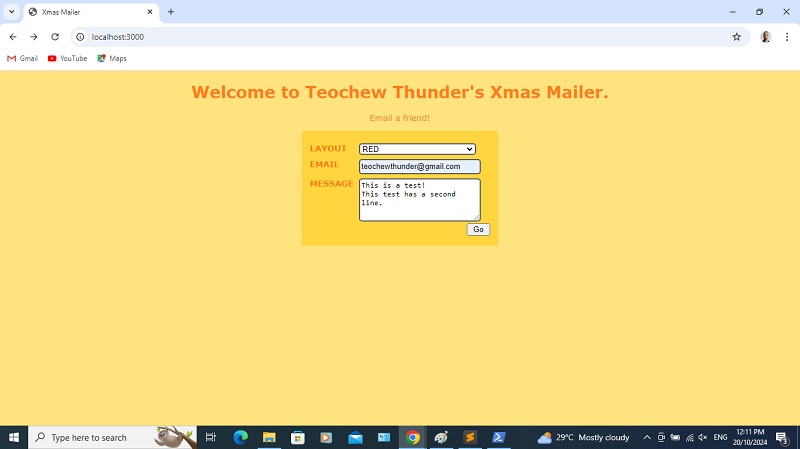
Now to test this. Fill up the form.


You should see this in the CLI! This will be information you can use.

Also, see what happens when you try to submit the form without filling stuff in. HTML5 does its thing. Let's use this as an excuse not to spend time validating the fields on the server. Just for today.


Implementing anti-CSRF

This is not mandatory to ensure that your form works, but it's pretty damn important, anyway. An anti-CSRF token is a mechanism to ensure that the request comes from a legitimate source. Probably overkill for this form, but let's see how it's done.

We'll use the csurf module.
install --save csurf


But an anti-CSRF token also needs cookies and sessions. So we'll need to install these too.
install --save express-session
install --save cookie-parser


Add in these modules.

app.js
app.use(require("body-parser")());
app.use(require("cookie-parser")());
app.use(require("express-session")());
app.use(require("csurf")());


app.get("/", (req, res)=> {
  res.render("form");
});


When you try to run the app again, you'll get this error. That's because the cookie-parser module requires a secret.


Actually, even a string containing only a single space, qualifies as a secret. This will suffice to get things working again. But that's not a good way to do things.

app.js
app.use(require("cookie-parser")(" "));


What we should do, is create a file separate from app.js. Let's call it auth.js. In it, we will declare that this file exports an object. This object has a property, secret. Here, just use any string you like as its value.

auth.js
module.exports = {
  secret: "thisisasecret"
}


Then import auth.js using the require() function, and set the result to the variable auth.

app.js
var auth = require("./auth.js");
var express = require("express");

var app = express();


And here, instead of the string we used earlier, we have the secret property of auth.
app.js
app.use(require("cookie-parser")(auth.secret));


Now things should run! However, when you attempt to submit the form, you should get this error. That's because once you include the module csurf, you're expected to have the anti-CSRF token as part of the form, and we haven't done that yet.


Before we do that, however, let's tidy up one loose end. Remember the last two errors you've seen was ugly black text and white backgrounds? Let's change that. Add another middleware function after the one we used to handle 404s. This one has the err parameter in the callback. So if the URL is valid but an error is thrown, the status is set to 500 and we render the page 500.

app.js
app.use((req, res, next)=> {
  res.status(404);
  res.render("404");
});

app.use((err, req, res, next)=> {
  res.status(500);
  res.render("500");
});


app.listen(app.get("port"), ()=> {

});


But we also want to pass in information, so let's use the code property of err, and set it as the value of errorMessage which we will pass into the page.

app.js
app.use(function(err, req, res, next) {
  res.status(500);
  res.render("500", { errorMessage: err.code });
});


In here, you'll see where we've placed errorMessage.

views/500.handlebars
<h1>500</h1>

<p>There was an error.</p>
<p><b>{{ errorMessage }}</b></p>


Now run the code again! There's still an error, but we've beautified it.


OK, let's now create the anti-CSRF token. Add this object in the call to render(), as a second argument. It will have the property _csrf and the value is the value returned by calling the csrfToken() method of the req object.

app.js
app.get("/", (req, res)=> {
  res.render("form", { csrf: req.csrfToken() });
});


Now in the view form, add a text field for that value. The name of the field is _csrf.

views/form.handlebars
<form action="/process" method="POST">
  <input type="text" name="_csrf" value="{{ csrf }}" />
  <label for="ddlLayout">
    <span class="labelText">LAYOUT</span>
    <select id="ddlLayout" name="ddlLayout">
      <option value="red">RED</option>
      <option value="green">GREEN</option>
      <option value="blue">BLUE</option>
    </select>
  </label>


We should see the value in there!


Change the type attribute to hidden, because while we want the element in the form, we don't want it to be seen.

views/form.handlebars
<input type="hidden" name="_csrf" value="{{ csrf }}" />


Try submitting the form again and this time it should work.

And we're done here. What we want to do next, is use the values submitted via the form, to send a HTML email!

Next

Mailing and HTML emails.

Tuesday, 17 December 2024

Web Tutorial: NodeJS Christmas Mailer (Part 1/3)

Tis the season to be jolly, readers! In the spirit of learning, we'll be exploring a bit of NodeJS today. I'm a bit of a beginner here myself, so bear with me!

What we'll do here, is create a web form that will send a HTML email. Sounds simple, and it is! However, that comes with a few considerations. So buckle up; this sleigh is going on a ride.

You should already have a Node environment, and set up the folder in which you'll be working. To begin, we install Express because it will take care of the tedious and repetitive scaffolding.
install --save express


Now create this file. This will be the file which we run whenever we need to restart the script. We need to run the require() function with "express" as an argument, then assign the returned value (which is another function) to the variable express.

app.js
var express = require("express");


Then we run the newly-created function express() and assign the value to app.

app.js
var express = require("express");

var app = express();


Next, we'll install Handlebars as a templating engine. It's not absolutely necessary, of course, but knowing how to use a templating engine is a good basic skill. Run this in the command line.
install --save express-handlebars


Again, we need to require() handlebars. Assign the returned value to the variable handlebars.

app.js
var express = require("express");

var app = express();

var handlebars = require("express-handlebars");


Then chain this to use the method create(). In it, we pass an object with one single property - defaultLayout with a value of "main".

app.js
var express = require("express");

var app = express();

var handlebars = require("express-handlebars").create({defaultLayout:"main"});


Then, by using app's engine() method, we set the app to use the Handlebars engine (represented by the engine property of the handlebars object) and map the ".handlebars" extension to that engine.

app.js
var express = require("express");

var app = express();

var handlebars = require("express-handlebars").create({defaultLayout:"main"});
app.engine("handlebars", handlebars.engine);


Now let's set some stuff. Use the set() method of the app object, to set the view engine to handlebars.

app.js
var express = require("express");

var app = express();

var handlebars = require("express-handlebars").create({defaultLayout:"main"});
app.engine("handlebars", handlebars.engine);

app.set("view engine", "handlebars");


We also want to set the port. In this case, we use the core process object's PORT property (within the sub-object env) or 3000 if it doesn't exist (as can be the case in a different environment).

app.js
var express = require("express");

var app = express();

var handlebars = require("express-handlebars").create({defaultLayout:"main"});
app.engine("handlebars", handlebars.engine);

app.set("view engine", "handlebars");
app.set("port", process.env.PORT || 3000);


After that, we'll want to do routes. Here's our first route, and it's the most basic one. It's a GET request and it's the home address. Just a slash, with nothing after it. The second argument in the get() method is a callback. The callback uses the parameters req and res to represent the request and response.

app.js
app.set("view engine", "handlebars");
app.set("port", process.env.PORT || 3000);

app.get("/", (req, res)=> {

});


In the callback, we use the response's render() method, and pass in "form" as the argument. This means that for the home page, we want to render the form page.

app.js
app.get("/", (req, res)=> {
  res.render("form");
});


Finally, we set the app to listen at the port we set earlier. We don't have to add any more statements to the callback, but it's useful for if we need to do any troubleshooting.

app.js
app.get("/", (req, res)=> {
  res.render("form");
});

app.listen(app.get("port"), ()=> {
  
});


Remember that the default layout is main and the home page is form? Our next steps will bear this in mind. In Handlebars, these files are in the views directory by default. And layouts are stored in the layouts directory of the views directory. Let's just start with form. Create form.handlebars in views. We'll start simple, with a h1 tag and a paragraph.

views/form.handlebars
<h1>Welcome to Teochew Thunder's Xmas Mailer.</h1>
<p>Email a friend!</p>


Now let's do the layout. Create the layouts directory within views, and then create main.handlebars in that sub-directory. It's a bare-bones HTML boilerplate.

views/layouts/main.handlebars
<!DOCTYPE html>
<html>
  <head>
    <meta charset="utf-8">
    <meta name="viewport" content="width=device-width, initial-scale=1">
    <title>Xmas Mailer</title>
  </head>
  <body>

  </body>
</html>


We will add the template string that brings body into the body tag. body is a keyword in the templating engine that represents the HTML content. And in this case, the HTML content will be inside main.handlebars.

views/layouts/main.handlebars
<!DOCTYPE html>
<html>
  <head>
    <meta charset="utf-8">
    <meta name="viewport" content="width=device-width, initial-scale=1">
    <title>Xmas Mailer</title>
  </head>
  <body>
    {{{ body }}}
  </body>
</html>


You'll see this in your browser at port 3000!


Time to add some styling. Generally there's a better way to do this, but I'm just going to put all the styling in the main layout.

views/layouts/main.handlebars
<!DOCTYPE html>
<html>
  <head>
    <meta charset="utf-8">
    <meta name="viewport" content="width=device-width, initial-scale=1">
    <title>Xmas Mailer</title>

    <style>
      body {
        font-family: verdana, sans-serif;
        font-size: 14px;
        background-color: rgba(255, 200, 0, 0.5);
        color: rgba(255, 100, 0, 0.8);
      }

      h1, p {
        text-align: center;
      }
    </style>

  </head>
  <body>
    {{{ body }}}
  </body>
</html>


Here we are, styling applied.


We'll need a few more! Add the "thank you" route. It's a GET, and renders the thankyou page.

app.js
app.get("/", (req, res)=> {
  res.render("form");
});

app.get("/thankyou", (req, res)=> {
  res.render("thankyou");
});


app.listen(app.get("port"), ()=> {

});


Create this file in the views directory. It has a h1 tag, two paragraphs and a link.

views/thankyou.handlebars
<h1>Thank you!</h1>
<p>Your mail has been sent.</p>
<p><a href="./">Send another.</a></p>


Now try this URL! If you click on the link, you should go back to the main page.


We'll create routes to handle errors as well. After the two routes we've defined so far, add a middleware function. It's the use() method of the app object. Again, it has req and res, and also next. But we'll only need res.

app.js
app.get("/thankyou", (req, res)=> {
  res.render("thankyou");
});

app.use((req, res, next)=> {

});


app.listen(app.get("port"), ()=> {

});


We set the status to 404 here. Bear in mind that this code only executes if none of the other routes are triggered.

app.js
app.get("/thankyou", (req, res)=> {
  res.render("thankyou");
});

app.use((req, res, next)=> {
  res.status(404);
});

app.listen(app.get("port"), ()=> {

});


Then after that, we use the render() method to display the 404 page.

app.js
app.get("/thankyou", (req, res)=> {
  res.render("thankyou");
});

app.use((req, res, next)=> {
  res.status(404);
  res.render("404");
});

app.listen(app.get("port"), ()=> {

});


We will, of course, want to create that page under the views directory.

view/404.handlebars
<h1>404</h1>

<p>Not found!</p>


Now try this. Enter any string after the base URL, other than "thankyou". You should get this.


Now for the rest of the form!

We've learned quite a few concepts. But it's time to create the form so that we can use it in the next part of this tutorial. In this file, add the HTML form. It will submit to the process route (which we'll create in the next part of this web tutorial) and the method will be POST.

views/form.handlebars
<h1>Welcome to Teochew Thunder's Xmas Mailer.</h1>
<p>Email a friend!</p>

<form action="/process" method="POST">

</form>


We have here a label tag. Within it is a span tag styled using the CSS class labelText. The label text is "LAYOUT".

views/form.handlebars
<form action="/process" method="POST">
  <label>
    <span class="labelText">LAYOUT</span>
  </label>

</form>


We've got a few more labels. There are br tags in between.

views/form.handlebars
<form action="/process" method="POST">
  <label>
    <span class="labelText">LAYOUT</span>
  </label>

  <br />

  <label>
    <span class="labelText">EMAIL</span>
  </label>

  <br />

  <label>
    <span class="labelText">MESSAGE</span>
  </label>

</form>


In here, we allow the user to select between a red, green or blue layout by means of a drop-down list, id and name ddlLayout. We'll want to set the for attribute in the label for this, too.

views/form.handlebars
<label for="ddlLayout">
  <span class="labelText">LAYOUT</span>
  <select id="ddlLayout" name="ddlLayout">
    <option value="red">RED</option>
    <option value="green">GREEN</option>
    <option value="blue">BLUE</option>
  </select>

</label>


For email, I'm going to use a text input with type attribute set to "email". This will be a required field. The drop-down list we made earlier is also mandatory, but there's a default value in it, so no need to do anything more.

views/form.handlebars
<label for="txtEmail">
  <span class="labelText">EMAIL</span>
  <input id="txtEmail" name="txtEmail" type="email" placeholder="john12345@gmail.com" required />
</label>


For the message, I use a textarea tag. It is also mandatory.

views/form.handlebars
<label for="txtMessage">
  <span class="labelText">MESSAGE</span>
  <textarea id="txtMessage" name="txtMessage" required></textarea>
</label>


Let's go ahead and add a Submit button.

views/form.handlebars
<form action="/process" method="POST">
  <label for="ddlLayout">
    <span class="labelText">LAYOUT</span>
    <select id="ddlLayout" name="ddlLayout">
      <option value="red">RED</option>
      <option value="green">GREEN</option>
      <option value="blue">BLUE</option>
    </select>
  </label>

  <br />

  <label for="txtEmail">
    <span class="labelText">EMAIL</span>
    <input id="txtEmail" name="txtEmail" type="email" placeholder="john12345@gmail.com" required />
  </label>

  <br />

  <label for="txtMessage">
    <span class="labelText">MESSAGE</span>
    <textarea id="txtMessage" name="txtMessage" required></textarea>
  </label>

  <br />

  <button>Go</button>
</form>


Looks... meh. This is going to need more styling.


In this file, add the styling in the style tag. We want all forms (or actually, the one and only form) to have a height, width, and be in the middle of the page, and have a background color.

views/layouts/main.handlebars
<style>
  body {
    font-family: verdana, sans-serif;
    font-size: 14px;
    background-color: rgba(255, 200, 0, 0.5);
    color: rgba(255, 100, 0, 0.8);
  }

  h1, p {
    text-align: center;
  }

  form {
    width: 22em;
    height: 12em;
    padding: 1em;
    display: block;
    margin: 0 auto 0 auto;
    background-color: rgba(255, 200, 0, 0.5);
  }

</style>


The label tags are set to display as block-level elements, with a bit of a margin at the top, and font is boldened. The span tags that are styled using labelText. They're also rendered as block-level elements so that we can float them left, give them a margin to the right, and a width.

views/layouts/main.handlebars
<style>
  body {
    font-family: verdana, sans-serif;
    font-size: 14px;
    background-color: rgba(255, 200, 0, 0.5);
    color: rgba(255, 100, 0, 0.8);
  }

  h1, p {
    text-align: center;
  }

  form {
    width: 22em;
    height: 12em;
    padding: 1em;
    display: block;
    margin: 0 auto 0 auto;
    background-color: rgba(255, 200, 0, 0.5);
  }

  label {
    display: inline-block;
    margin-top: 0.5em;
    font-weight: bold;
  }

  .labelText {
    display: inline-block;
    width: 5em;
    margin-right: 1em;
    float: left;
  }

</style>


Now, we'll make sure all the textboxes and drop-down lists have fixed widths and heights, round corners and a border.

views/layouts/main.handlebars
<style>
  body {
    font-family: verdana, sans-serif;
    font-size: 14px;
    background-color: rgba(255, 200, 0, 0.5);
    color: rgba(255, 100, 0, 0.8);
  }

  h1, p {
    text-align: center;
  }

  form {
    width: 22em;
    height: 12em;
    padding: 1em;
    display: block;
    margin: 0 auto 0 auto;
    background-color: rgba(255, 200, 0, 0.5);
  }

  label {
    display: inline-block;
    margin-top: 0.5em;
    font-weight: bold;
  }

  .labelText {
    display: inline-block;
    width: 5em;
    margin-right: 1em;
    float: left;
  }

  input, select, textarea {
    border-radius: 5px;
    width: 15em;
    height: 1.5em;
    border: 2px solid rgb(100, 100, 100);
  }

</style>


But textarea tags will have a bigger height.

views/layouts/main.handlebars
<style>
  body {
    font-family: verdana, sans-serif;
    font-size: 14px;
    background-color: rgba(255, 200, 0, 0.5);
    color: rgba(255, 100, 0, 0.8);
  }

  h1, p {
    text-align: center;
  }

  form {
    width: 22em;
    height: 12em;
    padding: 1em;
    display: block;
    margin: 0 auto 0 auto;
    background-color: rgba(255, 200, 0, 0.5);
  }

  label {
    display: inline-block;
    margin-top: 0.5em;
    font-weight: bold;
  }

  .labelText {
    display: inline-block;
    width: 5em;
    margin-right: 1em;
    float: left;
  }

  input, select, textarea {
    border-radius: 5px;
    width: 15em;
    height: 1.5em;
    border: 2px solid rgb(100, 100, 100);
  }

  textarea {
    height: 5em;
  }

</style>


And lastly, we style the button.

views/layouts/main.handlebars
<style>
  body {
    font-family: verdana, sans-serif;
    font-size: 14px;
    background-color: rgba(255, 200, 0, 0.5);
    color: rgba(255, 100, 0, 0.8);
  }

  h1, p {
    text-align: center;
  }

  form {
    width: 22em;
    height: 12em;
    padding: 1em;
    display: block;
    margin: 0 auto 0 auto;
    background-color: rgba(255, 200, 0, 0.5);
  }

  label {
    display: inline-block;
    margin-top: 0.5em;
    font-weight: bold;
  }

  .labelText {
    display: inline-block;
    width: 5em;
    margin-right: 1em;
    float: left;
  }

  input, select, textarea {
    border-radius: 5px;
    width: 15em;
    height: 1.5em;
    border: 2px solid rgb(100, 100, 100);
  }

  textarea {
    height: 5em;
  }

  button {
    display: inline-block;
    width: 3em;
    float: right;
  }

</style>


And now it looks acceptable.


Next

Form handling and security