Showing posts with label UI-UX. Show all posts

Sunday, 11 January 2026

Web Tutorial: SVG Maker

One of the many annoying things about creating SVGs is the constant switching back-and-forth between code and on-screen rendering. One good way around this is multiple monitors, but that still requires moving the mouse cursor from one screen to the other. Why is it a big deal? Developers switch screens all the time when coding. That's true, but when you're dealing with SVGs, especially when writing paths, this gets repeated a lot and can be a huge pain in the ass.

The other way is to use a site like JsFiddle. It comes with several features which can be nice... but I'm a big fan of keeping things simple.

With that in mind, today we'll be using jQuery to create a quick-and-dirty application that I'm going to call the SVG Maker. The user will fill in things like width, height, and the inner XML, and the preview will show accordingly.

We begin with some standard HTML, and linkage to jQuery. In styling, we set the font.
<!DOCTYPE html>
<html>
  <head>
    <title>SVG Maker</title>

    <style>
      body
      {
        font-family: arial;
        font-size: 14px;
      }
    </style>

    <script src="https://code.jquery.com/jquery-3.7.1.min.js"></script>

    <script>

    </script>
  </head>

  <body>

  </body>
</html>


In the body, we add two divs, each styled using the CSS class panel, which we will create later.
<!DOCTYPE html>
<html>
  <head>
    <title>SVG Maker</title>

    <style>
      body
      {
        font-family: arial;
        font-size: 14px;
      }
    </style>

    <script src="https://code.jquery.com/jquery-3.7.1.min.js"></script>

    <script>

    </script>
  </head>

  <body>
    <div class="panel">
  
    </div>

    <div class="panel">

    </div>

  </body>
</html>


This will be followed by the addition of labels and inputs. We have txtWidth and txtHeight, which accept only numerical values above 10, with a default of 100. HTML5 is just wonderful, eh? We also have a textbox txtCode. Finally, we have a button, btnPreview.
<html>
  <head>
    <title>SVG Maker</title>

    <style>
      body
      {
         font-family: arial;
         font-size: 14px;
      }
    </style>

    <script src="https://code.jquery.com/jquery-3.7.1.min.js"></script>

    <script>

    </script>
  </head>

  <body>
    <div class="panel">
      <label for="txtWidth">Width:</label><input type="number" id="txtWidth" min="10" value="100" />
      <br />
      <label for="txtHeight">Height:</label><input type="number" id="txtHeight" min="10" value="100" />
      <br />
      <label for="txtCode">Code:</label><textarea cols="100" rows="10" id="txtCode"></textarea>
      <br />
      <button id="btnPreview">Preview</button>
      <br />

    </div>

    <div class="panel">

    </div>
  </body>
</html>


Perhaps most importantly, we have an SVG, svgResult. It has a black outline for visibility.
<html>
  <head>
    <title>SVG Maker</title>

    <style>
      body
      {
         font-family: arial;
         font-size: 14px;
      }
    </style>

    <script src="https://code.jquery.com/jquery-3.7.1.min.js"></script>

    <script>

    </script>
  </head>

  <body>
    <div class="panel">
      <label for="txtWidth">Width:</label><input type="number" id="txtWidth" min="10" value="100" />
      <br />
      <label for="txtHeight">Height:</label><input type="number" id="txtHeight" min="10" value="100" />
      <br />
      <label for="txtCode">Code:</label><textarea cols="100" rows="10" id="txtCode"></textarea>
      <br />
      <button id="btnPreview">Preview</button>
      <br />
    </div>

    <div class="panel">
      <svg id="svgResult" style="outline: 1px solid rgb(0, 0, 0)" xmlns="http://www.w3.org/2000/svg" />
    </div>
  </body>
</html>


Here it is. Nothing to shout about, eh? That will be improved on, soon.


Here's some CSS. panel gives the dashboard and preview area some definition with a nice orange outline. Bear in mind that this isn't meant to look pretty. It's meant to be useful visually, which isn't necessarily (and quite often isn't) the same thing.
<style>
  body
  {
     font-family: arial;
     font-size: 14px;
  }

  .panel
  {
     outline: 2px solid rgb(200, 100, 0);
     width: 90%;
     padding: 1em;
     margin: 1em auto 0 auto;
  }
</style>


We'll then style labels, inputs and buttons. Here, I set the display properties to inline-block and set width and float properties, so as to align them properly. It's not that important from an aesthetic point of view because it still doesn't look pretty, but at least it doesn't look like a mess, which is important from a usability point of view.
<style>
  body
  {
      font-family: arial;
      font-size: 14px;
  }

  .panel
  {
      outline: 2px solid rgb(200, 100, 0);
      width: 90%;
      padding: 1em;
      margin: 1em auto 0 auto;
  }

  label
  {
      display: inline-block;
      width: 10em;
      float: left;
  }

  input[type="number"]
  {
      width: 3em;
  }

  button
  {
      display: inline-block;
      width: 10em;
      float: right;
  }

</style>


And that's how it all looks like now.


We'll want some JavaScript here. Specifically, create the renderSVG() function.
<script>
  function renderSVG()
  {

  }

</script>


We want this function to run when the page loads.
<script>
  function renderSVG()
  {

  }

  $(document).ready(function() {
    renderSVG();
  });

</script>


And we also want to bind the execution to the click event of btnPreview, when the page loads.
<script>
  function renderSVG()
  {

  }

  $(document).ready(function() {
    renderSVG();

    $("#btnPreview").click(function() {
      renderSVG();
    });

  });
</script>


Now it's time to work on renderSVG(). Declare width, height and content. Set them to the values of these HTML elements. In the case of width and height, we want to coerce these values into numerical ones, using the parseInt() function.
function renderSVG()
{
  var width = parseInt($("#txtWidth").val());
  var height = parseInt($("#txtHeight").val());
  var content = $("#txtCode").val();

}


Here, we ensure that svgResult's width and height attributes match the values of width and height.
function renderSVG()
{
  var width = parseInt($("#txtWidth").val());
  var height = parseInt($("#txtHeight").val());
  var content = $("#txtCode").val();

  $("#svgResult").attr("width", width);
  $("#svgResult").attr("height", height);

}


Then we make sure that svgResult's HTML content is content. But we can't do it directly because it's an SVG. We have to first replace its HTML content with its HTML content, if that makes sense, then set it using content.
function renderSVG()
{
  var width = parseInt($("#txtWidth").val());
  var height = parseInt($("#txtHeight").val());
  var content = $("#txtCode").val();

  $("#svgResult").attr("width", width);
  $("#svgResult").attr("height", height);
  $("#svgResult").html($("#svgResult").html()).html(content);
}


Take a gander. When you reload the page now, the SVG is 100 by 100 pixels because those are the default values.


Change the number, click the Preview button, and watch the SVG change in size.


Add in some XML content, maybe a nice orange circle. Click Preview, and presto!


Adding a grid

It would be helpful to have some visual aids while creating the SVG. To that end, we'll add a customizable grid.

In the UI, we have txtGrid, a numerical input with a minimum value of 10. This means that the smallest grid we can have here is 10 by 10 pixels.
<label for="txtWidth">Width:</label><input type="number" id="txtWidth" min="10" value="100" />
<br />
<label for="txtHeight">Height:</label><input type="number" id="txtHeight" min="10" value="100" />
<br />
<label for="txtGrid">Grid:</label><input type="number" id="txtGrid" min="0" value="10" />
<br />

<label for="txtCode">Code:</label><textarea cols="100" rows="10" id="txtCode"></textarea>
<br />


And here's the new input.


In the JavaScript function renderSVG(), we handle this inclusion by declaring grid, and setting it to the value of the HTML element txtGrid. We also declare gridLines as an empty string. This will eventually be XML content. To that end, we will want to prepend gridlines to content when rendering the SVG.
function renderSVG()
{
  var width = parseInt($("#txtWidth").val());
  var height = parseInt($("#txtHeight").val());
  var grid = parseInt($("#txtGrid").val());
  var content = $("#txtCode").val();
  var gridLines = "";

  $("#svgResult").attr("width", width);
  $("#svgResult").attr("height", height);
  $("#svgResult").html($("#svgResult").html()).html(gridLines + content);
}


We only want to create the grid if gridLines is greater than 0.
function renderSVG()
{
  var width = parseInt($("#txtWidth").val());
  var height = parseInt($("#txtHeight").val());
  var grid = parseInt($("#txtGrid").val());
  var content = $("#txtCode").val();
  var gridLines = "";

  if (grid > 0)
  {

  }


  $("#svgResult").attr("width", width);
  $("#svgResult").attr("height", height);
  $("#svgResult").html($("#svgResult").html()).html(gridLines + content);
}

We'll then use a For loop to iterate from grid to width, using the value of grid as an incrementor...
function renderSVG()
{
  var width = parseInt($("#txtWidth").val());
  var height = parseInt($("#txtHeight").val());
  var grid = parseInt($("#txtGrid").val());
  var content = $("#txtCode").val();
  var gridLines = "";

  if (grid > 0)
  {
    for (var i = grid; i < width; i += grid)
    {

    }

  }

  $("#svgResult").attr("width", width);
  $("#svgResult").attr("height", height);
  $("#svgResult").html($("#svgResult").html()).html(gridLines + content);
}

...and with each iteration, use i to add the XML for vertical line tags to gridLines.
function renderSVG()
{
  var width = parseInt($("#txtWidth").val());
  var height = parseInt($("#txtHeight").val());
  var grid = parseInt($("#txtGrid").val());
  var content = $("#txtCode").val();
  var gridLines = "";

  if (grid > 0)
  {
    for (var i = grid; i < width; i += grid)
    {
      gridLines += '<line x1="' + i + '" y1="0" x2="' + i + '" y2="' + height + '" stroke="rgb(200,200,200)" stroke-width="1" />';
    }
  }

  $("#svgResult").attr("width", width);
  $("#svgResult").attr("height", height);
  $("#svgResult").html($("#svgResult").html()).html(gridLines + content);
}


Look at this! Grey vertical lines.

Then we repeat this, using height this time, for horizontal line tags.
function renderSVG()
{
  var width = parseInt($("#txtWidth").val());
  var height = parseInt($("#txtHeight").val());
  var grid = parseInt($("#txtGrid").val());
  var content = $("#txtCode").val();
  var gridLines = "";

  if (grid > 0)
  {
    for (var i = grid; i < width; i += grid)
    {
      gridLines += '<line x1="' + i + '" y1="0" x2="' + i + '" y2="' + height + '" stroke="rgb(200,200,200)" stroke-width="1" />';
    }

    for (var i = grid; i <= height; i += grid)
    {
      gridLines += '<line x1="0" y1="' + i + '" x2="' + width + '" y2="' + i + '" stroke="rgb(200,200,200)" stroke-width="1" />';
    }

  }

  $("#svgResult").attr("width", width);
  $("#svgResult").attr("height", height);
  $("#svgResult").html($("#svgResult").html()).html(gridLines + content);
}


Now we have a grid!


Adding objects

Time for a little value-add! We have the bare minimum - an interface to change the size and content of the SVG, and a grid to help draw. But what would add even more value?

Well, the ability to add pre-determined objects such as circles and lines to the SVG.

For that, let's add a series of buttons to the interface. Also add a checkbox with a label, cbAppend.
<div class="panel">
  <label for="txtWidth">Width:</label><input type="number" id="txtWidth" min="10" value="100" />
  <br />
  <label for="txtHeight">Height:</label><input type="number" id="txtHeight" min="10" value="100" />
  <br />
  <label for="txtGrid">Grid:</label><input type="number" id="txtGrid" min="0" value="10" />
  <br />
  <label for="txtCode">Code:</label><textarea cols="100" rows="10" id="txtCode"></textarea>
  <br />
  <label for="cbAppend">Append?</label><input type="checkbox" id="cbAppend" />
  <br />
  <button>Add Line</button>
  <button>Add Rect</button>
  <button>Add Ellipse</button>
  <button>Add Circle</button>
  <button>Add Path</button>
  <button>Add Text</button>
  <br />
  <hr />

  <button id="btnPreview">Preview</button>
  <br />
</div>


See the buttons and checkbox? Good.


Add an event to the first button. It will be a function call to addNode(), with the argument "line".
<button onClick="addNode('line')">Add Line</button>
<button>Add Rect</button>
<button>Add Ellipse</button>
<button>Add Circle</button>
<button>Add Path</button>
<button>Add Text</button>


In the JavaScript, create two functions, addNode() and getDefaultNode(). Both of them have the parameter nodeType.
function renderSVG()
{
  var width = parseInt($("#txtWidth").val());
  var height = parseInt($("#txtHeight").val());
  var grid = parseInt($("#txtGrid").val());
  var content = $("#txtCode").val();
  var gridLines = "";

  if (grid > 0)
  {
    for (var i = grid; i < width; i += grid)
    {
      gridLines += '<line x1="' + i + '" y1="0" x2="' + i + '" y2="' + height + '" stroke="rgb(200,200,200)" stroke-width="1" />';
    }

    for (var i = grid; i <= height; i += grid)
    {
      gridLines += '<line x1="0" y1="' + i + '" x2="' + width + '" y2="' + i + '" stroke="rgb(200,200,200)" stroke-width="1" />';
    }
  }

  $("#svgResult").attr("width", width);
  $("#svgResult").attr("height", height);
  $("#svgResult").html($("#svgResult").html()).html(gridLines + content);
}

function getDefaultNode(nodeType)
{

}

function addNode(nodeType)
{

}


$(document).ready(function() {
  renderSVG();

  $("#btnPreview").click(function() {
    renderSVG();
  });
});


Just for clarity, let's start on getDefaultNode(). We use a Switch statement on nodeType, because there are many possible values. For now, there is only "line". Notice we don't use a break statement here because all these cases return a value.
function getDefaultNode(nodeType)
{
  switch (nodeType)
  {
    case "line":
    default: return "";
  }

}


In the case of "line", an orange line tag is returned.
function getDefaultNode(nodeType)
{
  switch (nodeType)
  {
    case "line": return '<line x1="0" y1="0" x2="300" y2="200" stroke="rgb(250,100,0)" stroke-width="2" />';
    default: return "";
  }
}


Now for addNode(). We declare node, and use getDefaultNode(), passing in nodeType as the argument, to get the XML value which we then assign to this variable. Then we declare content, which is the text content of txtCode, and append, which is a Boolean depending on whether cbAppend is checked.
function addNode(nodeType)
{
  var node = getDefaultNode(nodeType);
  var content = $("#txtCode").val();
  var append = $("#cbAppend").prop("checked");

}


If append is true, that means we want node to be appended to content. We'll set txtCode's text content as that. If not, then we prepend node to content.
function addNode(nodeType)
{
  var node = getDefaultNode(nodeType);
  var content = $("#txtCode").val();
  var append = $("#cbAppend").prop("checked");

  if (append)
  {
    $("#txtCode").val(content + node);
  }
  else
  {
    $("#txtCode").val(node + content);
  }

}


After that, the updated code should be in txtCode. We'll run renderSVG().
function addNode(nodeType)
{
  var node = getDefaultNode(nodeType);
  var content = $("#txtCode").val();
  var append = $("#cbAppend").prop("checked");

  if (append)
  {
    $("#txtCode").val(content + node);
  }
  else
  {
    $("#txtCode").val(node + content);
  }

  renderSVG();
}


See what happens when I click the Add Line button? The code appears in the text box and an orange line appears in the SVG!


You'll notice that right now, it's not immediately apparent whether the line tag is appended or prepended. Let's just add the rest of the code. These are all the other tags that can be added. You may want to add your own.
function getDefaultNode(nodeType)
{
  switch (nodeType)
  {
    case "line": return '<line x1="0" y1="0" x2="300" y2="200" stroke="rgb(250,100,0)" stroke-width="2" />';
    case "rect": return '<rect width="200" height="100" x="10" y="10" rx="20" ry="20" fill="rgb(250,100,0)" />';
    case "ellipse": return '<ellipse rx="100" ry="50" cx="120" cy="80" fill="rgb(250,100,0)" stroke="rgb(250,100,0)" stroke-width="3" />';          
    case "circle": return '<circle r="45" cx="50" cy="50" fill="rgb(250,100,0)" />';
    case "path": return '<path d="M150 5 L75 200 L225 200 Z" fill="none" stroke="rgb(250,100,0)" stroke-width="3" />';
    case "text": return '<text x="5" y="15" fill="rgb(250,100,0)">abc 123</text>';

    default: return "";
  }
}


In the HTML, add the function calls.
<button onClick="addNode('line')">Add Line</button>
<button onClick="addNode('rect')">Add Rect</button>
<button onClick="addNode('ellipse')">Add Ellipse</button>
<button onClick="addNode('circle')">Add Circle</button>
<button onClick="addNode('path')">Add Path</button>
<button onClick="addNode('text')">Add Text</button>


Now add a rect tag and then a line, by clicking the buttons. Note that the line is prepended to the rect because the checkbox is not checked.


Check the checkbox and add a path tag. There, now you see that the path is appended.


How useful is it?

Well. I think it's useful. And of course I would, I made it! I have consciously avoided adding too many features to it precisely because the objective was to keep the interface as simple as possible while still incorporating features that are frequently used. Obviously, this varies from individual to individual.

<text>Till next time!</text>
T___T

Sunday, 12 October 2025

TeochewThunder: Year Eleven (Part 2/2)

Things don't look that good from a viewership standpoint this year compared to last year, but then, they rarely do. I've noticed this for years now. I look at the numbers for this current year and shake my head, only to realize that these numbers tend to double after the passing of another year.

The end result is that the current year's viewership always looks inferior to the previous year's. It's not necessarily the case. Just needs time to settle into the internet.

That said, let's get into the weeds of what apparent successes there are.

Huge hits

I talked about COVID-19, didn't I? And apparently, it hit a chord. The Dark Years of COVID-19: A Software Developer's Perspective was the undisputed winner, hands down.

Do techies lean Liberal or Conservative? was the culmination of a few weeks of frustration as I watched Social Media go mad over the movie Superman and Sydney Sweeney's jeans. And also some rumination I've had over DEI.

What great genes jeans!

Full-time Pay, Part-time Job was something I wrote on the spur of the moment, after witnessing Jeremy Tan's epic speech during the eve of the Polling Day 2025. It inspired me to pen this down, and if I'm being honest, it's not one of my more thought-out works. Still, it doesn't matter; the popularity of the topic and Jeremy Tan, carried the day for this blogpost.

Replit Goes Rogue was a recent addition, but its trajectory is on the rise. Despite being posted less than a month, its numbers are really promising.

OK-ish

So many posts fell into this category. Either huge things were expected for them and they failed by just doing decently, or they punched above their weight.

Why people should (and shouldn't) hire older software developers was just more comparison between younger and older developers.

How much of the Artificial Intelligence hype is just hot air? I suspect this struck a chord with much of the anti-AI brigade, which has been gathering momentum.

What Iswaran's sentence means for those in positions of authority were some thoughts on authority and responsibility. Not so much tech, more workplace-related.

A vacation!

A Software Developer's Vacation in Malacca. A fun piece, with lots of pictures!

Not My Job, Not My Problem is more of a commentary on the workplace, rather than anything tech.

Finally, The Silencing of Charlie Kirk and what it means for Social Media, was written two days after Charlie Kirk was felled by an assassin's bullet. As to be expected, it caught fire fast and it's probably only in this category because of its late inclusion. Some readers called it "balanced". The funny thing is, in the toxic climate that is the USA's Culture Wars, this piece would be vilified by both sides.

Artificial Intelligence Experts join Meta... but it's not about the money? Really? was me responding to more tech news.

Duds

These were the ones that barely raised a whimper. Mostly technical posts which is a tragedy because, well, this is a tech blog. Sorry, not sorry. This is actually in line with the assignment, so I'm gonna keep doing these, regardless.

JavaScript now has negative indexing... sort of was just a report on a new JavaScript function I discovered. It wasn't even that new. And probably I need to work on my presentation because the views suggested that readers found it boring AF.

Is Repeating The Password Field Really Necessary? More of a UI/UX thing. Maybe not the most interesting blogpost in the world, but I think it needed to be written.

Meta Ditches the Fact-checkers - now, I really expected a hell of a lot more out of this one. Either people aren't interested in seeing me shit on Meta, or they just aren't very interested in Meta, period. On the other hand, as mentioned, Artificial Intelligence Experts join Meta... but it's not about the money? Really? did OK, so I really don't know.

Bailing from Meta.

While we're at it, it appears that at this time of writing, in a bizarre twist, AI experts have left Meta (and all that money) to join some startup. This in no way invalidates my previously implied point that Meta is a deeply problematic company that one would join only if the financial reward was great... the fact that people are not staying in spite of the money, only further reinforces the point.

But this hardly warrants a blogpost all on its own, so... just gonna leave it here.

Thunderation!

Been a pleasure, as always. I love working on this blog, but I also look forward to the annual blogging break. It's where I can get things reset and take stock of the year ahead.

Dialling it up to eleven, yo!
T___T

Tuesday, 4 March 2025

Is Repeating The Password Field Really Necessary?

There is something that seems to be some kind of de facto standard where updating user passwords is concerned. And that is the practice of asking the user to enter in the password twice.

We'll need that
password again...

It's so much of a standard that whenever I create a for for users to edit their details (the password being among those details) I always have an extra field for the user to repeat the password, with the required validations. It's reflexive by now, and not once over the years have I ever thought to ask why.

Until now, that is.

That's a good question, though. Why this feature, and why not? Let's break it down.

Why this feature?

Well, for one, password entries tend to be masked. Therefore, users may misspell their initial choice of password. The Caps Lock key might have been on, or something. They keyboard might be jammed. Hey, not everyone can type stuff with 100% accuracy while blindfolded, OK?!

Typing while blindfolded.

Therefore, putting in a confirmation field helps ascertain that, yes, the user absolutely meant to key in "i_k1cK_@$$!556677".

The second reason I'm about to name, is a bit of a circular argument. As mentioned earlier, this UI pattern has been in use since... forever. Which means that users are comfortable with it by now. It's, despite its flaws, an established part of the process. People generally want to stick with established patterns instead of figuring new shit out.

I'm only including the reason above because legacy inertia is legitimate grounds where UI and UX are concerned. As a techie, I despise the argument that we should continue bad practices simply because it's the way we've always done things.

Why not?

There's a whole host of reasons not to do it.

While an extra confirmation field might help the user avoid typos, there's nothing stopping the user from copy-pasting passwords. This feature may also drive users to use overly simple passwords instead. Never underestimate the lengths users will go to, to make life easier for themselves. All of which make a system less secure, not more.

Copy-pasting.

An extra field adds overhead. Not only is there more data to input, there is more data validation to cover. We have to check that the field is not empty, matches the previously typed password, and so on. All in return for the dubious value of helping ensure users didn't mistype their chosen password.

And of course, from the user's point of view, one extra field, masked and with extra validations, is just more inconvenience. Although, in the case of security, anything that adds security almost always inconveniences the user to some degree.

All in all

What's the solution for this? There's no one single unified solution thus far. Some platforms prefer the tried-and-tested way. Other platforms prefer the visibility toggle on the password field so that users can see what they typed, if they so chose, with no extra field. With time, an eventual standard should emerge.

r3g@rd$!!12345,
T___T

Monday, 14 August 2023

Web Tutorial: The Chameleon Site

In recent weeks, I came across this amusing story about eBay. Basically, it's about UI and UX, and how users react negatively to sudden changes in a system unless that change takes place very slowly, over time. In the story, such a change was brought about, to the site's background color.

This story amused me so much that I just had to write a bit of code to replicate this effect. It's not spectacular and accomplishes nothing really new, but let's dive into it anyway, eh?

We first have some standard website HTML. I generated the text using ChatGPT.
<!DOCTYPE html>
<html>
    <head>
        <title>Chameleon</title>

        <script>

        </script>
    </head>

    <body>
        <p>
            Welcome to ColorShift! We are passionate about the power of colors to transform and enhance your world. Whether you're looking to revamp your home decor, design a striking logo, or simply add a touch of vibrancy to your digital creations, we have you covered. Our expert team is dedicated to helping you explore the endless possibilities of color.
        </p>

        <p>
            Discover a kaleidoscope of hues, shades, and tones that will ignite your creativity. Dive into our extensive color palette and find the perfect combination that speaks to your unique style. From bold and energetic to calm and soothing, we offer a vast spectrum of options to suit any mood or aesthetic.
        </p>

        <p>
            Our intuitive color selection tool allows you to experiment with different combinations, ensuring you find the harmony you're seeking. Adjust brightness, saturation, and contrast to achieve just the right balance. Create stunning gradients or play with complementary and contrasting colors to make your designs truly stand out.
        </p>

        <p>
            Whether you're a seasoned designer or a novice enthusiast, our blog is a treasure trove of inspiration and guidance. Dive into articles that delve into the psychology of color, explore the latest trends, and learn invaluable tips and tricks to make your colors pop.
        </p>

        <p>
            At ColorShift, we understand that colors have the power to evoke emotions, convey messages, and make a lasting impression. Let us be your guide on this chromatic journey. Unleash your imagination, unleash the colors!
        </p>
    </body>
</html>


Within the script tag, we create the setBgColor() function. It has three parameters. The first is maxDays, which is an integer that specifies how many days the change is going to take place over. fromColor and toColor are objects that dictate the beginning color and the end state color, each of these containing the RGB values in integers, as properties.
<script>
      function setBgColor(maxDays, fromColor, toColor)
      {

      }

</script>


When the site loads, we want to run the function. Let's first set it at 100 days, from the color white to orange.
<body onload="setBgColor(100, {r:255, g:255, b:255}, {r:255, g:200, b:0})">


Back to the setBgColor() function, we begin by declaring body as the HTML body tag.
function setBgColor(maxDays, fromColor, toColor)
{
      var body = document.getElementsByTagName("body");
      body = body[0];

}


We then declare startDate as a new Date object, and as a test, set it to the first day of this year. For this code to work, startDate should be before today's date.
function setBgColor(maxDays, fromColor, toColor)
{
      var body = document.getElementsByTagName("body");
      body = body[0];

      var startDate = new Date();
      startDate.setFullYear(2023, 0, 1);

}


Now we declare currentDate as another Date object, and it's today's date. Next, we have ms, which we use to calculate the number of milliseconds between currentDate and startDate.
function setBgColor(maxDays, fromColor, toColor)
{
      var body = document.getElementsByTagName("body");
      body = body[0];

      var startDate = new Date();
      startDate.setFullYear(2023, 0, 1);

      var currentDate = new Date();
      var ms = currentDate.getTime() - startDate.getTime();

}


And then we do some math on ms to get the number of days, assigning it to the variable days. We use floor() because days might not be a whole number, and it would be easier if it was.
function setBgColor(maxDays, fromColor, toColor)
{
      var body = document.getElementsByTagName("body");
      body = body[0];

      var startDate = new Date();
      startDate.setFullYear(2023, 0, 1);

      var currentDate = new Date();
      var ms = currentDate.getTime() - startDate.getTime();
      var days = Math.floor(ms / 86400000);
}


We declare finalColor and set it to the value of toColor.
function setBgColor(maxDays, fromColor, toColor)
{
    var body = document.getElementsByTagName("body");
    body = body[0];

    var startDate = new Date();
    startDate.setFullYear(2023, 0, 1);

    var currentDate = new Date();
    var ms = currentDate.getTime() - startDate.getTime();
    var days = Math.floor(ms / 86400000);

    var finalColor = toColor;
}


And now we set the background color of body to use the r, g and b properties in finalColor.
function setBgColor(maxDays, fromColor, toColor)
{
    var body = document.getElementsByTagName("body");
    body = body[0];

    var startDate = new Date();
    startDate.setFullYear(2023, 0, 1);

    var currentDate = new Date();
    var ms = currentDate.getTime() - startDate.getTime();
    var days = Math.floor(ms / 86400000);

    var finalColor = toColor;

    body.style.backgroundColor = "rgb(" + finalColor.r + ", " + finalColor.g + ", " + finalColor.b + ")";
}


What do we do with days, then? Well, we use a conditional statement to check if days is less than maxDays. If so, we'll alter the value of finalColor (not right now, though) but if not, the background color of body will effectively be the current value of finalColor, which is toColor.
function setBgColor(maxDays, fromColor, toColor)
{
    var body = document.getElementsByTagName("body");
    body = body[0];

    var startDate = new Date();
    startDate.setFullYear(2023, 0, 1);

    var currentDate = new Date();
    var ms = currentDate.getTime() - startDate.getTime();
    var days = Math.floor(ms / 86400000);

    var finalColor = toColor;

    if (days < maxDays)
    {

    }


    body.style.backgroundColor = "rgb(" + finalColor.r + ", " + finalColor.g + ", " + finalColor.b + ")";
}


Since it's 3rd August and definitely more than 100 days (the value of maxDays), you can see the color of background is orange!


Now in the If block, declare ratio. It's the result of dividing days by maxDays, which will give you a value less than 1 because days is less than maxDays.
if (days < maxDays)
{
    var ratio = days / maxDays;
}


Next, we declare rDiff, which is the difference between the r property of toColor and the r property of fromColor.
if (days < maxDays)
{
    var ratio = days / maxDays;

    var rDiff = toColor.r - fromColor.r;
}


Same for gDiff and bDiff.
if (days < maxDays)
{
    var ratio = days / maxDays;

    var rDiff = toColor.r - fromColor.r;
    var gDiff = toColor.g - fromColor.g;
    var bDiff = toColor.b - fromColor.b;  
 
}


If rDiff is greater than 0 (which means there is a difference), we alter the r property of finalColor to be the r property of fromColor, plus the ratio-ed value of rDiff! So the closer days is to maxDays, the closer the r property of finalColor will be to the r property of toColor.
if (days < maxDays)
{
    var ratio = days / maxDays;

    var rDiff = toColor.r - fromColor.r;
    var gDiff = toColor.g - fromColor.g;
    var bDiff = toColor.b - fromColor.b;    

    if (rDiff != 0) finalColor.r = fromColor.r + (Math.floor(rDiff * ratio));
}


Yes, we can do the same for the g and b properties of finalColor.
if (days < maxDays)
{
    var ratio = days / maxDays;

    var rDiff = toColor.r - fromColor.r;
    var gDiff = toColor.g - fromColor.g;
    var bDiff = toColor.b - fromColor.b;    

    if (rDiff != 0) finalColor.r = fromColor.r + (Math.floor(rDiff * ratio));
    if (gDiff != 0) finalColor.g = fromColor.g + (Math.floor(gDiff * ratio));
    if (bDiff != 0) finalColor.b = fromColor.b + (Math.floor(bDiff * ratio));

}


Let's test this! Change the value here to an entire year.
<body onload="setBgColor(365, {r:255, g:255, b:255}, {r:255, g:200, b:0})">


It's now 3rd August. That's 212 days after 1st Jan, right? 212 over 365 is 0.5808219178082191, give or take. So the color should be 58% orange!


Change this to an even bigger number...
<body onload="setBgColor(3650, {r:255, g:255, b:255}, {r:255, g:200, b:0})">


And you see the color gets closer to the "original" color, white.


Conclusion

I hope the logic was clear. This web tutorial is a little light on functionality, but it was fun to do. Which is the reason why I do anything on this blog.

Don't fade away on me now!
T___T

Friday, 6 May 2022

Reading Books In Modern Technology

One of the several advancements that technology has enabled in recent memory, is in reading. Electronic media now includes e-books, which has several advantages over traditional media. E-books are now ubiquitous over the internet, and many swear by them. While I acknowledge the use case of e-books - and you may feel free to call me old-fashioned here - there are many instances where I prefer having an actual physical book in hand as opposed to reading it off the screen.

Today, I will attempt to dive into the differences, advantages and disadvantages one medium has over the other.

E-books

These are basically electronic files which require a reader to translate into text and illustrations. Some of them may be in the free PDF format, and others in proprietary formats.


E-books

User Interface. Some readers have a search feature that will search for keywords within the text, and bring the user to that place in the book immediately. When doing research, this is invaluable. The bookmark functionality is related, and will bring the user to that specific place in the book to revisit. Traditional books have a physical bookmark feature, at most, and depending on how it's done, may damage the book.

Accessibility. Not all users are able-bodied. Some are visually impaired. However, readers can come with a voiceover feature that reads the book for the user. Traditional books have no such feature unless someone else reads the book for them. Braille is a good solution, but requires a whole new book created just for that purpose.

Physical storage. A staggering number of texts can be stored on the cloud or even just on the device, and recalled instantly with a click. No matter how large the book is, it all weighs the same on the reading device. For traditional books, each book takes up space and has weight, as is the case for all physical matter. This represents a challenge when attempting to store large numbers of them. And searching for a book takes way more time.

Environmental concerns. When all the books are in electronic format, all the user really needs to think about are carbon emissions when using electricity. For printed media, the paper used in the creation of a book, kills trees as well.

Lastly, you will never ever get a paper cut from an e-book.

Traditional books

There's no real need to elaborate what these are, unless you were born in the last five years, in which case you would hardly be reading this blog anyway, would you? Suffice to say, this refers to books with actual physical spines, pages and covers. Actual print.

Traditional media

Texture. Some people swear by the sensation of actually having a book in hand. The weight of it. The smell. The physical act of turning a page. This is not something that an e-book could reasonably reproduce. Also, the visual of having an entire library is a lot more awesome than simply having lots of files on an e-book reader.

Better for eyesight. Looking at the screen of an e-book reader may not be the best thing in the world for poor eyesight. This can be mitigated by better reader settings, though.

Cheaper to replace. This is largely contextual. Some books can be extremely rare and expensive. However, the average book certainly costs less to replace than an an e-book reader.

Final thoughts

E-books are here to stay - there's no question about that. But there's a place for traditional media too. Sadly, with newer generations being born into a world dominated by the Internet, actual physical books may eventually become a thing of the past. Hopefully, I'll be long gone by then.

Don't read too much into this,
T___T

Tuesday, 27 July 2021

Using Chinese in application user interfaces

Chinese can be a poetic and fantastically expressive language. And it's to my everlasting regret that I didn't take it more seriously when I was a schoolboy. That's because as my proficiency and exposure in my chosen trade increased and I eventually started learning how to make mobile apps, I discovered that UTF-8 was a great boon, because it allowed me to write Chinese characters in HTML.

What, you might ask, is the significance of Chinese characters in a mobile app? The answer, dear readers, is plenty.

You see, the one thing that a developer is always in need of, on a mobile app, is screen space. Due to small screen sizes, I'm always looking for creative ways to fit whatever functionality or information on that tiny screen. And where real estate is concerned, Chinese really saves the day.

Compactness

One Chinese character takes up one character space on screen. In fact, one Chinese character is one Chinese word! Therefore, text justification doesn't really apply to Chinese characters. Neither do word breaks.

Consider the example below from A Tale of Two Cities.
It was the best of times, it was the worst of times, it was the age of wisdom, it was the age of foolishness, it was the epoch of belief, it was the epoch of incredulity, it was the season of Light, it was the season of Darkness, it was the spring of hope, it was the winter of despair, we had everything before us, we had nothing before us, we were all going direct to Heaven, we were all going direct the other way – in short, the period was so far like the present period, that some of its noisiest authorities insisted on its being received, for good or for evil, in the superlative degree of comparison only.


Now the Chinese version (just a Google translation). You can probably see how compact the entire paragraph is - no spaces wasted.
那是最美好的时光,那是最糟糕的时光,那是智慧的时代,那是愚昧的时代,那是信仰的时代,那是怀疑的时代,那是光明的时代, 是黑暗的季节,是希望的春天,是绝望的冬天,我们眼前的一切,眼前的一切,我们都直接去天堂,我们都直接去天堂– 简而言之,这一时期与目前的时期如此遥远,以至于它的一些喧闹的当局坚持以最高的比较程度来接受它是好是坏。


Chinese characters
are compact.

The side effect of this is that we can cram a lot more information into one paragraph than we could with English... or any other language that uses the English alphabet. That's no small thing when you consider how much screen space there really is on your typical mobile app.

Conciseness

Remember I said the Chinese language was expressive? In the previous examples, I showed how a lot more words could be crammed into one space. Now, I'm going do the opposite - I will show you how much visual space a piece of information takes in different languages.

Take the word "welcome".

In English, it takes 7 character spaces.
welcome


In Malay, it's worse. It takes 11 character spaces.
akan datang


In Chinese? It takes 2 character spaces. Two!
欢迎


Imagine if so much information could be represented in that little amount of horizontal spacing, how much space a mobile app developer could save by using Chinese, and how much more space there would be to play with.

The Chinese Conclusion

The advantages of using Chinese as a medium for mobile apps, similarly applies to other Asian languages like Japanese, Burmese and Korean. Of course, the fact that English is almost universally known, is a huge point in its favor. But Chinese is catching up. And the China market is nothing to sniff at.

Thanks and goodbye! 谢谢, 拜拜!
T___T

Monday, 18 November 2019

Web Tutorial: The Contact Us Page (Part 3/4)

This is where we will be making things look good. Or, well, less ugly.

Colors and layout are a huge part of UX, and while we won't be performing any astounding feats of wizardry today, we will at least be cleaning stuff up. It helps that the markup is already done, and all we really need to do is supply the CSS.

So let's begin by giving all divs a red outline for better clarity, and putting in some margin and padding resets for the html and body tags. Here, let's specify a black background and font properties.
<style>
    html, body
    {
        padding: 0;
        margin: 0;
        font-size: 14px;
        font-family: arial;
        background-color: #000000;
        height: 100%;
    }

    div
    {
        outline: 1px solid #FF0000;
    }

    .hide
    {
        display: none;
    }
</style>


Seeing a change already.


Next, we style contentContainer. This places all content in the middle of the screen via the margin property. Width is set to 800 pixels which will be wide enough for most screens, and height at 100%. The background has been set to white.
div
{
    outline: 1px solid #FF0000;
}

.contentContainer
{
    width: 800px;
    height: 100%;
    margin: 0 auto 0 auto;
    background-color: #FFFFFF;
}

.hide
{
    display: none;
}


Yes, that's it...


contactContainer is styled next. It's the style for the div that goes inside contentContainer. Width is 90%, with some padding at the top, and the margin property sets it to the middle of its parent.
.contentContainer
{
    width: 800px;
    height: 100%;
    margin: 0 auto 0 auto;
    background-color: #FFFFFF;
}

.contactContainer
{
    width: 90%;
    padding-top: 10px;
    margin: 0 auto 0 auto;
}

.hide
{
    display: none;
}


See it taking shape!


The next thing we style is innerContainer, which comes after messageContainer (which we won't style yet) within contactContainer. The width is 100%, but that's about it. There will be no visible changes in your display, so don't bother refreshing. It's just a layout div to hold everything together.
.contactContainer
{
    width: 90%;
    padding-top: 10px;
    margin: 0 auto 0 auto;
}

.innerContainer
{
    width: 100%;
}

.hide
{
    display: none;
}


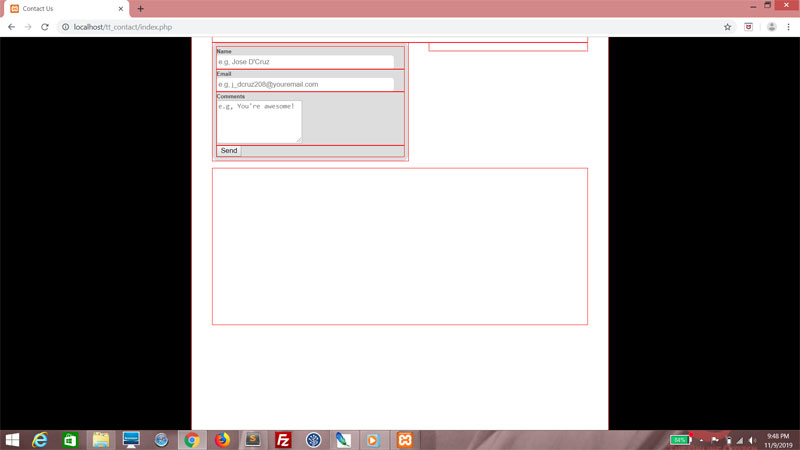
Now for something more visually substantial. The Form, the Card and the Map are three visual components of the Contact Us page. The Map will take up the bottom of the page, while the Form and the Card will fill the top of the page.

For formContainer, we're going with 50% of its parent's width, a bit of padding, and rounded corners. Background color and border have been set to a light grey. Then we set the float property to left.
.hide
{
    display: none;
}

.formContainer
{
    width: 50%;
    float: left;
    padding: 0.5em;
    background-color: #DDDDDD;
    border: 1px solid #DDDDDD;
    border-radius: 10px;
}


Isn't that nice?


cardContainer takes up 40% width. We'll float it right, give it rounded corners and padding, and a light grey border.
.formContainer
{
    width: 50%;
    float: left;
    padding: 0.5em;
    background-color: #DDDDDD;
    border: 1px solid #DDDDDD;
    border-radius: 10px;
}

.cardContainer
{
    width: 40%;
    float: right;
    padding: 0.5em;
    border: 1px solid #DDDDDD;
    border-radius: 10px;
}


You'll see it's looking a little flat at the moment. That's because that div is empty with no defined height.


mapContainer will take up full width, and we'll define the height as well. A top margin gives it some space between the first two divs.
.formContainer
{
    width: 50%;
    float: left;
    padding: 0.5em;
    background-color: #DDDDDD;
    border: 1px solid #DDDDDD;
    border-radius: 10px;
}

.cardContainer
{
    width: 40%;
    float: right;
    padding: 0.5em;
    border: 1px solid #DDDDDD;
    border-radius: 10px;
}

.mapContainer
{
    width: 100%;
    height: 300px;
    float: left;
    margin-top: 1em;
}


This should give you a better idea about the general layout.


The Form

Let's work on the form some more. Here's some styling for the labels.
.formContainer
{
    width: 50%;
    float: left;
    padding: 0.5em;
    background-color: #DDDDDD;
    border: 1px solid #DDDDDD;
    border-radius: 10px;
}

label
{
    font-weight: bold;
    font-size: 0.75em;
    color: #444444;
}

.cardContainer
{
    width: 40%;
    float: right;
    padding: 0.5em;
    border: 1px solid #DDDDDD;
    border-radius: 10px;
}


You won't see much change yet, but trust me that it will look amazing once we're finished.


Now we style all input textboxes with a width, height, wounded corners and a bit of padding. Set the border to zero thickness!
label
{
    font-weight: bold;
    font-size: 0.75em;
    color: #444444;
}

input[type = text]
{
    width: 25em;
    height: 1.5em;
    padding: 0.25em;
    border-radius: 5px;
    border: 0px solid #000000;
}

.cardContainer
{
    width: 40%;
    float: right;
    padding: 0.5em;
    border: 1px solid #DDDDDD;
    border-radius: 10px;
}


Sweet!


This is the styling for the button, and it's really up to taste. I recommend that you float it right, and maybe add a hover pseudoselector so it changes color upon a mouseover.
input[type = text]
{
    width: 25em;
    height: 1.5em;
    padding: 0.25em;
    border-radius: 5px;
    border: 0px solid #000000;
}

input[type = submit]
{
    display: inline-block;
    float: right;
    width: 5em;
    height: 2em;
    border-radius: 5px;
    border: 0px solid #000000;
    background-color: #999999;
    font-weight: bold;
    cursor: pointer;
}

input[type = submit]:hover
{
    background-color: #FFFFFF;
    cursor: pointer;
}

.cardContainer
{
    width: 40%;
    float: right;
    padding: 0.5em;
    border: 1px solid #DDDDDD;
    border-radius: 10px;
}


So now you have a pretty button!


The styling for the textarea tag is pretty much the same as for the input textboxes, except that this element doesn't inherit font settings from the body and you have to explicitly specify them.
input[type = submit]:hover
{
    background-color: #FFFFFF;
    cursor: pointer;
}

textarea
{
    width: 25em;
    padding: 0.25em;
    border-radius: 5px;
    border: 0px solid #000000;
    font-family: arial;
}

.cardContainer
{
    width: 40%;
    float: right;
    padding: 0.5em;
    border: 1px solid #DDDDDD;
    border-radius: 10px;
}


Great!


Let's style formrow so that there'll be a decent amount of padding. Specifying the font size here will also change the labels.
textarea
{
    width: 25em;
    padding: 0.25em;
    border-radius: 5px;
    border: 0px solid #000000;
    font-family: arial;
}

.formrow
{
    margin-top: 1em;
    font-size: 1.5em;
}

.cardContainer
{
    width: 40%;
    float: right;
    padding: 0.5em;
    border: 1px solid #DDDDDD;
    border-radius: 10px;
}

There you go.


Let's not forget the error messages. Let's make them red to really hammer home the point. The font size should be a teeny bit smaller, and in bold. Any span tags within that CSS class should have height specified, and maybe some padding. In order to specify height for an inline element like span, though, you'll need to set the display property to inline-block.
.formrow
{
    margin-top: 1em;
    font-size: 1.5em;
}

.error
{
    color: #FF0000;
    font-size: 0.8em;
    font-weight: bold;
}

.error span
{
    display: inline-block;
    height: 1.5em;
    padding-top: 0.25em;
}

.cardContainer
{
    width: 40%;
    float: right;
    padding: 0.5em;
    border: 1px solid #DDDDDD;
    border-radius: 10px;
}


This should be what you see if you click the Send button without filling in anything!


The Card

The purpose of the Card is to show contact details. And that's what we'll do. In this div, add three divs and style each one using the CSS class cardrow.
<div class="cardContainer">
    <div class="cardrow">
       
    </div>

    <div class="cardrow">

    </div>

    <div class="cardrow">

    </div>
</div>


Then fill in some details.
<div class="cardContainer">
    <div class="cardrow">
        +65 1234567
    </div>

    <div class="cardrow">
        mail@teochewthunder.com
    </div>

    <div class="cardrow">
        140 Cecil Street<br />
        12-34a<br />
        Singapore 069543
    </div>
</div>


Kind of cramped and plain, isn't it?


As with the formrow CSS class, styling cardrow this way affects font size and row spacing.
.cardContainer
{
    width: 40%;
    float: right;
    padding: 0.5em;
    border: 1px solid #DDDDDD;
    border-radius: 10px;
}

.cardrow
{
    margin-bottom: 1em;
    font-size: 1.2em;
}

.mapContainer
{
    width: 100%;
    height: 300px;
    float: left;
    margin-top: 1em;
}


Much better! But let's improve things further. Add more styles to each div that you've styled using the CSS class cardrow.


<div class="cardContainer">
    <div class="cardrow icon_phone">
        +65 1234567
    </div>

    <div class="cardrow icon_email">
        mail@teochewthunder.com
    </div>

    <div class="cardrow icon_address">
        123 South Dakota Avenue<br />
        12-34a<br />
        Singapore 112113
    </div>
</div>


And then let's write the classes icon_phone, icon_email and icon_address. Each of these uses the after pseudoselector. Set the display property to block, with width to 2em. Height is variable - for the phone number and email, they take up only one line, so the height should be 1em. But for the address, it should be 3em. All this is floated left because they will be to the left of the content., and the text is aligned center. For the content property, we'll use HTML symbols.
.cardrow
{
    margin-bottom: 1em;
    font-size: 1.2em;
}   

.icon_phone:before
{
    display: block;
    content: "\260F";
    width: 2em;
    height: 1em;
    float: left;
    text-align: center;
}

.icon_email:before
{
    display: block;
    content: "\2709";
    width: 2em;
    height: 1em;
    float: left;
    text-align: center;
}

.icon_address:before
{
    display: block;
    content: "\2616";
    width: 2em;
    height: 3em;
    float: left;
    text-align: center;
}

.mapContainer
{
    width: 100%;
    height: 300px;
    float: left;
    margin-top: 1em;
}


Beautiful!


Just one final touch! The card is significantly shorter than the form. While it would take effort to make them exactly equal in height, all we're really trying to do is achieve a little visual balance. So let's add a logo. I'm gonna go with my personal logo for this.


Use the after pseudoselector, float it right with a width and height of 3em, then set the background size to contain. The margin-top property has been set to a negative value so that it will overlap the last row just a bit!
.cardContainer
{
    width: 40%;
    float: right;
    padding: 0.5em;
    border: 1px solid #DDDDDD;
    border-radius: 10px;
}

.cardContainer:after
{
    content: "";
    display: block;
    width: 3em;
    height: 3em;
    float: right;
    margin-top: -2em;
    background: url(logo.png) right top no-repeat;
    background-size: contain;
}

.cardrow
{
    margin-bottom: 1em;
    font-size: 1.2em;
}


We're done for the Card!


Styling the message

There's one more thing - the message at the top of the page. It's currently in black and white, and while there's nothing wrong with that, it helps to use color for context.

First, we set sizes, padding, round corners, all the purely aesthetic stuff. We'll use the before pseudoselector to add a 2em space at the start of the block.
.contactContainer
{
    width: 90%;
    padding-top: 10px;
    margin: 0 auto 0 auto;
}

.messageContainer
{
    width: 100%;
    height: 2.5em;
    padding-top: 1em;
    font-weight: bold;
    margin-bottom: 0.5em;
    border-radius: 10px;
    color: #FFFFFF;
}

.messageContainer:before
{
    content: "";
    display: block;
    width: 2em;
    height: 2em;
    float: left;
    font-size: 2em;
    margin-top: -0.5em;
    text-align: center;
}

.innerContainer
{
    width: 100%;
}


Then in the PHP, after declaring the variable message, declare the variable messageclass and set it to "message_error".
<?php
session_start();

$message = "";
$messageclass = "message_error";

$errors = array();


At these points, set messageclass. On any successful case, messageclass should be set to message_success. And message_error on any unsuccessful case.
        if (!$mailsent)
        {
            $form_email = "";
            $form_name = "";
            $form_comments = "";

            $message = "Email sent. Thank you!";
            $messageclass = "message_success";
        }
        else
        {
            $message = "An error occured while trying to send your mail. Please try again.";
            $messageclass = "message_error";
        }
    }       
}
else
{
    $message = "CSRF attack foiled!";
    $messageclass = "message_error";
}


In the HTML, set the div to be styled using not only messageContainer, but also hide if there is no message, and either message_error or message_success if there is a message.
<div class="messageContainer <?php echo ($message == "" ? "hide" : $messageclass); ?>">
    <?php echo $message; ?>
</div>


Back to the CSS, we will write styles for message_error and message_success. The background color for message_error is a light red, and light blue for message_success. And we will use the before pseudoselector to set the content property in both cases - a tick for message_success and a cross for message_error.
.messageContainer
{
    width: 100%;
    height: 2.5em;
    padding-top: 1em;
    font-weight: bold;
    margin-bottom: 0.5em;
    border-radius: 10px;
    color: #FFFFFF;
}

.messageContainer:before
{
    content: "";
    display: block;
    width: 2em;
    height: 2em;
    float: left;
    font-size: 2em;
    margin-top: -0.5em;
    text-align: center;
}

.message_error
{
    background-color: #FF9999;
}

.message_success
{
    background-color: #9999FF;
}

.message_error:before
{
    content: "\02718";
}

.message_success:before
{
    content: "\02714";
}

.innerContainer
{
    width: 100%;
}


Now let's see what happens when we submit successfully.


An unsuccessful case!


And finally, remove the red outlines.
div
{
    outline: 0px solid #FF0000;
}


Yep, that's how it should look.


Next

Stay tuned for the final piece of the puzzle. I'm gonna show you how to insert a map widget into your page.